
How To Change the Resolution in Tomb Raider IV-VI Remastered
Just let us change it, Aspyr!


Aspyr is back with another remastered collection, this time packaging and remastering Tomb Raider IV-VI. The first collection was met with plenty of positivity thanks to continued support from the developer and the ability to toggle between classic and remastered graphics.
Unfortunately, just like previous Aspyr releases, players can’t manually adjust most graphical settings including basic ones like the resolution or aspect ratio. Just like the last few releases though, here is how you can change the resolution in in Tomb Raider IV-VI Remastered with a few launch commands.
Change the Resolution in Tomb Raider IV-VI Remastered
Just like Tomb Raider I-III Remastered and Legacy of Kain Soul Reaver Remastered, this collection defaults to the resolution of your display. So if your monitor’s resolution is set to 1080p, the collection will render at 1080p as well. This can be adjusted with two approaches.
Use a Launch Command
If you want to use a custom resolution, then a launch command works for both Steam and GOG. For instance, if you want to play the game at 900p, here is how that will work on Steam:
- In the Steam library, right-click on Tomb Raider IV-VI Remastered and select Properties
- In the General tab, under LAUNCH COMMANDS, type the following:
-width 1600 -height 900
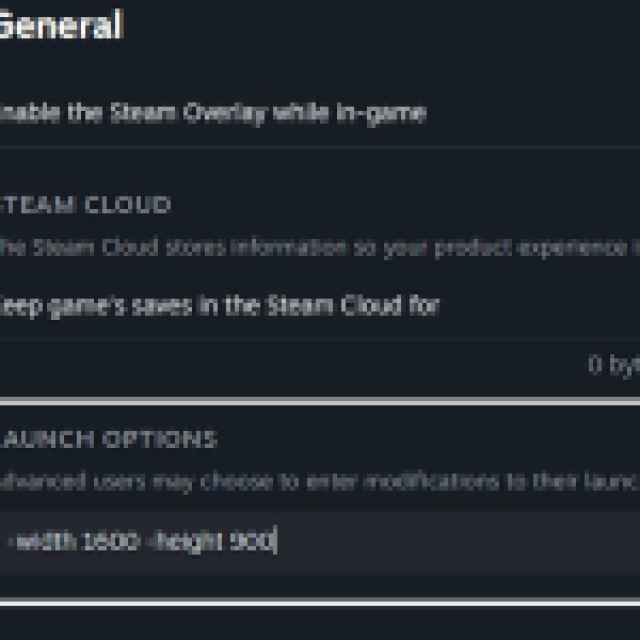
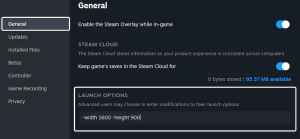
- You can set the resolution values to your liking, but the above example is for 1600×900
- Once you’re done, launch Tomb Raider IV-VI Remastered and hit Alt + Enter to go into Windowed mode.
That’s all you need to do, and the only drawback here is that you will have to play in windowed mode. Switching back to fullscreen mode will default the game to the desktop resolution again. The Borderless Gaming tool doesn’t work with this either. Thankfully, I’ve tested several aspect ratios and resolution values and everything works as intended once you’ve entered the command line.
If you’re playing the game on the GOG client, you can add the same launch parameters in that as well.
There is a workaround for the Windowed Mode problem as well, but it’s a bit more tedious.
Switch the Desktop Resolution
Instead of using a launch command, you can simply change the resolution of your desktop to your desired one. This will force Tomb Raider IV-VI Remastered to render at the desktop resolution you have selected.

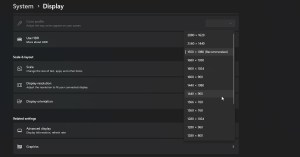
While this approach produces better results, it isn’t ideal since you will have to keep switching between resolutions at launch and when you’ve closed the game.
Disable Vsync in Tomb Raider IV-VI Remastered
If you want to disable vsync in Tomb Raider IV-VI Remastered and run the collection with an uncapped frame rate, you can use the following command in Steam and GOG:
-novsync
Some games in the collection have a locked frame rate based on which graphics mode (Retro FPS) you use.
Since the developers haven’t added these settings in previous Remastered Collections, we don’t expect these to be added in Tomb Raider IV-VI Remastered either. It’s a bit annoying to deal with


