
Roadcraft Complete Controls for PC and Controller
A lot to take in.


Roadcraft is another mechanically rich and immersive simulation title from Saber Interactive. This time, players take on the role of a contractor tasked with restoring sites devastated by natural disasters. That means you’ll be driving heavy machinery and operating a wide range of tools and equipment.
Since this is a simulation title, knowing the correct controls for each action is vital to success. Here are the complete controls for Roadcraft, whether you’re playing on a controller or keyboard and mouse.
Roadcraft Complete Controls for Controllers
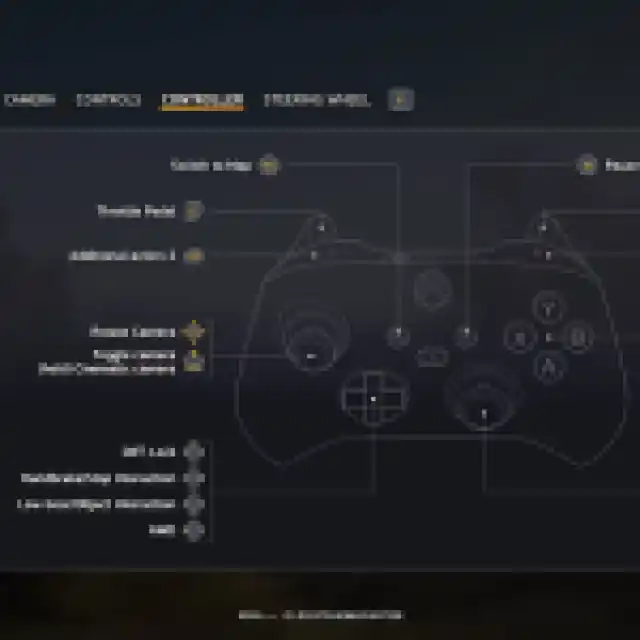
Here are the default controls for Roadcraft, whether you’re playing on an Xbox or PlayStation controller.
| Action | Xbox | PlayStation |
|---|---|---|
| Throttle Pedal | RT | R2 |
| Brake | LT | L2 |
| Additional action 1 | LB | L1 |
| Additional action 2 | RB | R1 |
| Diff. Lock | Y | Triangle |
| Handbrake | B | Circle |
| Stop Interaction | B | Circle |
| Low Gear | A | X |
| Object Interaction | A | X |
| AWD | X | Square |
| Rotate Camera | Right Thumbstick | Right Thumbstick |
| Toggle Camera | RS | R3 |
| Cinematic Camera | RS (Hold) | R3 (Hold) |
| Zoom Camera | Left Thumbstick (Up / Down) | Left Thumbstick (Up / Down) |
| Vehicle Steer | Left Thumbstick (Left / Right) | Left Thumbstick (Left / Right) |
| Hide Hints | LS | L3 |
| Recovery | D-Pad Up | D-Pad Up |
| Honk | D-Pad Right | D-Pad Right |
| Refill Sand | D-Pad Down | D-Pad Down |
| Pause Menu | Pause Button | Pause Button |
| Switch to Map | View Button | Touchpad |
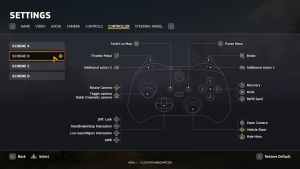
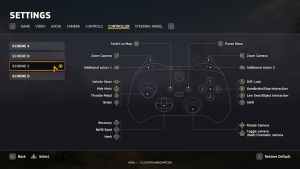
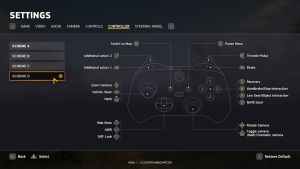
This is the default control scheme, but there are three more to choose from for controllers marked from A to D.
Roadcraft Complete Controls for Keyboard and Mouse
Here are the default controls for Roadcraft if you’re playing on a keyboard and mouse.
General
| Action | Input |
|---|---|
| Throttle Pedal | W |
| Brake | S |
| Turn Wheel to the Left | A |
| Turn Wheel to the Right | D |
| Object Interaction | F |
| Handbrake | Space |
| AWD | E |
| Diff. Lock | Q |
| Low Gear | Left Shift |
| Recovery | R |
| Honk | H |
| Refill Sand | G |
| Hide Hints | I |
| Switch to Map | Tab |
| Cockpit camera | C |
| Cinematic camera mode | V |
Additional Menu Controls
| Action | Input |
|---|---|
| Additional action 1 | Left Mouse Button |
| Additional action 2 | Right Mouse Button |
Custom Actions
| Action | Input |
|---|---|
| Custom action (1-9) | 1-9 |
Axes Controls
| Action | Input |
|---|---|
| Secondary Axis Up | R |
| Secondary Axis Down | F |
| Secondary Axis Left | Q |
| Secondary Axis Right | E |
Stationary Crane Controls
| Action | Input |
|---|---|
| Forward | W |
| Back | S |
| Left | A |
| Right | D |
| Raise | R |
| Lower | F |
| Wind Up the Winch | T |
| Unwind the Winch | G |
| Rotate Object on a Winch to the Left | Q |
| Rotate Object on a Winch to the Right | E |
| Tower crane movement on rails 1 | Z |
| Tower crane movement on rails 2 | X |
Controls in Map
| Action | Input |
|---|---|
| Focus Camera | H |
| Set Player Marker | T |
| Camera Alignment | U |
| Switch Map Layer | P |
| Switch Bridge Angle | O |
| Delete | Middle Mouse Button |
| Clear Route | C |
| Add Route Node | Left Mouse Button |
| Move Route Node | Right Mouse Button |
| Start Route | F |
| Push to Talk Shortcut | Caps Lock |
Can you Remap Controls in Roadcraft?
Yes, you can remap the controls in Roadcraft if you’re playing on a keyboard and mouse. Players who prefer a controller have multiple presets to choose from.
How to fix Roadcraft Controller Issues on PC
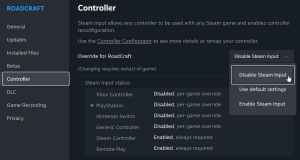
Roadcraft has native support for Xbox and PlayStation controllers on PC. This means that the developers have set up dedicated profiles for each controller type. If you can’t get your PlayStation controllers to work properly or are seeing incorrect prompts, here is how you can fix that.
- Make sure Roadcraft isn’t running
- Open Steam, and navigate to your library
- Here, right-click on Roadcraft and select Properties
- In the Controller tab, select the Disable Steam Input option under Override for Roadcraft

Overall, there is a decent amount of customization for controls, along with multiple controller presets as well. The support on PC is quite decent, with native profiles for Xbox and PlayStation controllers.


