
How To Fix the Roadcraft Controller Issues on PC
Get those pads working!


RoadCraft is the latest title from Saber Interactive, and it’s part of their excellent off-roading franchise with previous heavy-hitters like SnowRunner and Expeditions. Like previous titles, RoadCraft uses a proprietary engine and looks stunning, especially on PC. It also has support for multiple input types, including controllers and steering wheels.
If you can’t get your controller to work properly with RoadCraft, though, here is how you can easily fix that and get into the construction grind.
Fixing the RoadCraft Controller Issues on PC
Based on my testing, RoadCraft natively supports both Xbox and PlayStation controllers. This means that you can freely switch between both controller types, and the in-game prompts will change accordingly. However, by default, Steam Input will be enabled, which can cause a possible conflict, resulting in your controller not working at all or displaying incorrect prompts.
Here is how to address that:
- Make sure Roadcraft isn’t running.
- Open Steam and navigate to your library.
- Here, right-click on Roadcraft and select Properties.
- In the Controller tab, select the Disable Steam Input option under Override for Roadcraft.

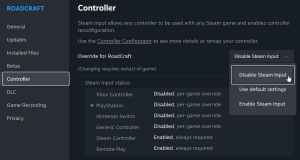
After you have disabled Steam Input, launch RoadCraft, and your connected controller will work properly. This is also recommended by the developers on their official FAQ since they have set up native profiles for each controller that function independently of Steam Input.
If you have connected a PlayStation controller like the DualShock 4 or the DualSense, RoadCraft will show the correct prompts as well.
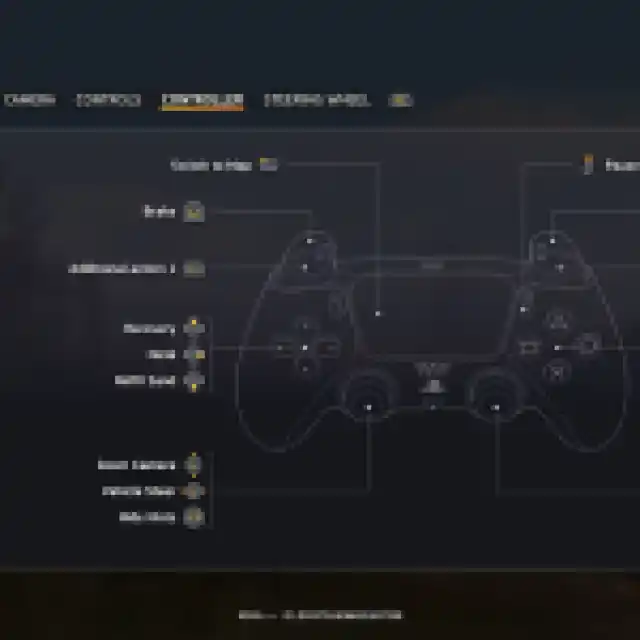
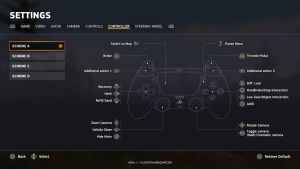
RoadCraft also has basic support for Logitech and Thrustmaster steering wheels, and the developers plan on adding more support with new updates.
Check Detected Controllers
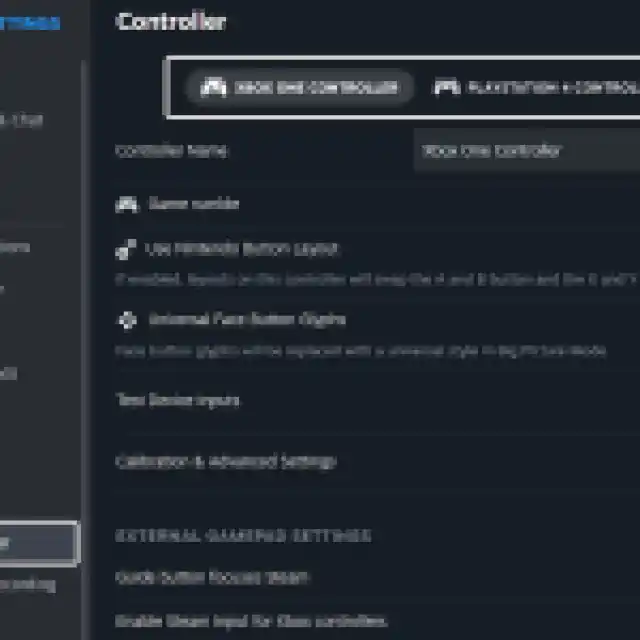
If your controller isn’t working even after disabling Steam Input, I recommend making sure that your connected controller is being detected by Steam. To check detected controllers in the Steam client, simply select Steam > Settings > Controller:

Remove Other Controllers
As an added measure, try connecting only one type of controller at a time. While I have been able to connect both Xbox and PlayStation controllers at the same time, something like a HOTAS, fight stick, steering wheel, or anything similar might be causing a conflict.
Overall, the controller support in RoadCraft is quite solid, and you can expect a wide variety of peripherals to work natively with it. With so many systems and features in the game, make sure to check out the complete controls as well.


