
How to Enable Secure Boot and TPM 2.0 in Highguard
Goodbye cheaters!


The Secure Boot and TPM 2.0 state requirements are becoming increasingly common in highly competitive games. It combats cheating to keep the game as fair as possible.
In Highguard, you’ll need to keep these functions on to play the game. Here’s a short guide on enabling these features on your computer to play Highguard.
How to Turn On Secure Boot and TPM 2.0 to Play Highguard
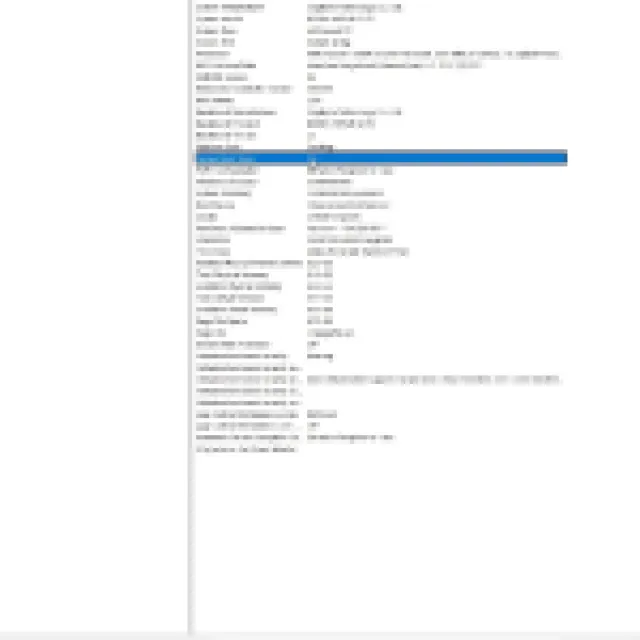
When you go to the Highguard Steam page, you’ll see the “Secure Boot & TPM 2.0 Not Detected” notification just above the play game or download button. It won’t show up if you are running on these states already, so you should only encounter a problem when you start playing if they are still off.
To remedy issues, go to your Windows bar and search “Run” or open the Run command by pressing the Windows button + R. Type “msinfo32” to open your system information and look for the Secure Boot State as seen in the image above.
If it says “On,” you should be good to go. If it says “Off,” the only way to turn it on is through your system’s BIOS settings, which are different depending on your hardware. If you remember the model of your motherboard, look it up and look through the manual or settings to find the Secure Boot setting when running BIOS mode.
Before going through the BIOS mode, also look up TPM 2.0 for the same model, as you will most likely find the TPM 2.0 setting in the BIOS mode.
Once you enable these features, you can check the Secure Boot State again through the msinfo32 system information. For TPM 2.0, open the run command and enter “tpm.msc” to open the TPM Management information on your computer.
Look for the “Status” overview, and it should say “The TPM is ready for use” if TPM 2.0 is currently active.


