
How To Disable Chromatic Aberration in Lost Records Bloom & Rage
Just give us toggles UE devs!

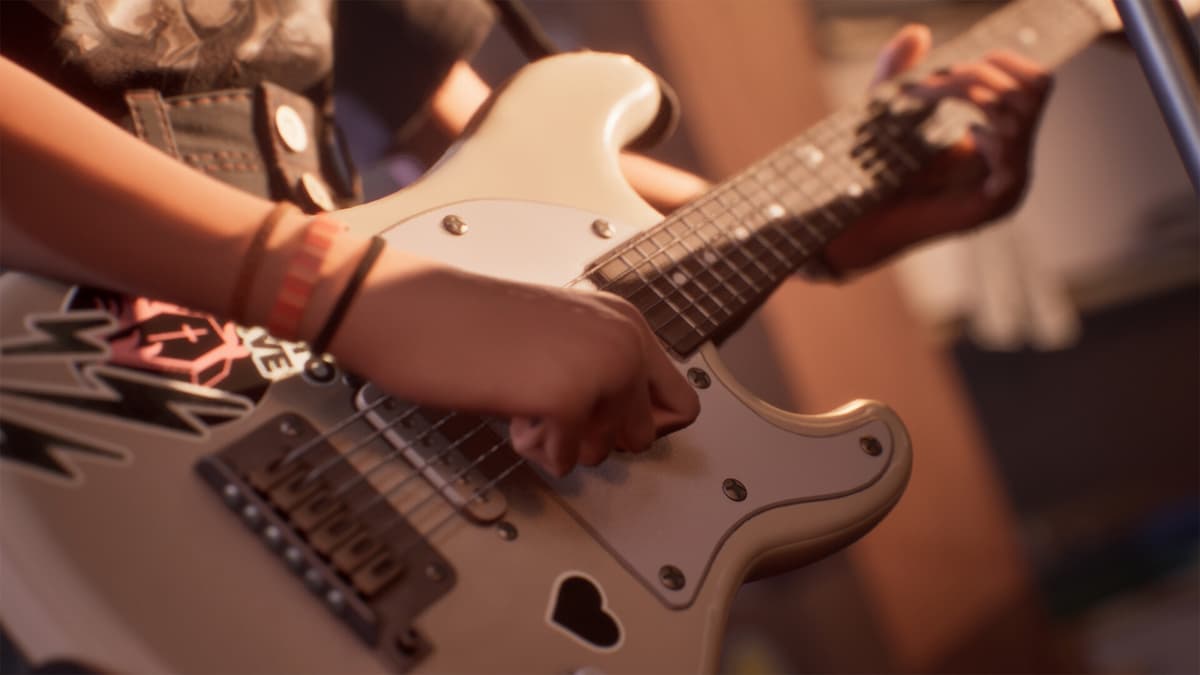
Lost Records: Bloom & Rage is the latest Unreal Engine 5 release from DON’T NOD that is fairly demanding on PC. While the game has support for upscaling technologies like DLSS and FSR, it’s missing the usual set of post-processing toggles for several cinematic effects.
This seems to be a common trend for most Unreal Engine 5 releases, and here is how you can disable chromatic aberration, depth of field, and film grain in Lost Records: Bloom & Rage.
Disable Chromatic Aberration in Lost Records Bloom & Rage
Chromatic aberration distorts the edges of the image, producing a visibly blurry image that can feel quite distracting. It’s excessively used in Lost Records: Bloom & Rage with no in-game option to turn it off.
Here is a comparison of the main menu background with chromatic aberration enabled and disabled.


Notice how the leaves have some actual definition on the right side. It’s the same case for the shoes.
Similarly, a lot of the shoes have much more clarity with chromatic aberration disabled.
Here is how you can disable it with a simple tweak of the configuration file.
- Make sure Lost Records Bloom & Rage isn’t currently running
- First, open Windows Run by hitting the Windows and R keys together
- Enter the following address, and press OK
%LOCALAPPDATA%\Bloom&Rage\Saved\Config\Windows
- Here, open the Engine.ini file using a text editor like Notepad or Notepad++
- Enter the following lines at the bottom
[SystemSettings]
r.SceneColorFringeQuality=0


- After you’re done, save the file and close the editor.
This will disable the chromatic aberration effect in the game. There is still some noticeable blur in the presentation. We can further tweak the presentation by disabling both depth of field and film grain.
Disable Depth of Field in Lost Records Bloom & Rage
Depth of field is another effect that can’t be disabled in Lost Records Bloom & Rage. It’s also used quite excessively in my opinion but largely comes down to personal preference.


Here is how you can disable that as well.
- Open the Engine.ini file again and add the following line under [System Settings]:
r.DepthOfFieldQuality=0
It should look like this now.


Unlike chromatic aberration, depth of field actually adds a bit to the dialogue interactions letting you focus on the relevant parts of the conversation, speaker, or scene. You can certainly play without it, but I think it’s one of the better uses.
Finally, you can disable film grain with the following command as well:
r.Tonemapper.GrainQuantization=0
To sum it up, use the following commands in the Engine.ini file to disable the major post-processing effects in Lost Records: Bloom & Rage, or any Unreal Engine 4/5 game in general.
| Command | Effect Disabled |
|---|---|
| r.SceneColorFringeQuality=0 | Disables Chromatic Aberration |
| r.DepthOfFieldQuality=0 | Disables Depth of Field |
| r.Tonemapper.GrainQuantization=0 | Disables Film Grain |
All of these contribute to a much sharper and clearer presentation for Lost Records: Bloom & Rage. Life is Strange: Double Exposure has the same issues when it comes to these post-processing effects and everything is bundled in the same setting. With these engine commands, you can pick and choose what you want to keep enabled.


