
How to Access the Photo Mode in Dead or Alive 6: Last Round
Best part of the re-release.


Dead or Alive 6: Last Round is available now on PC and consoles. While it’s largely an incremental update over the original release, it does add a dedicated Photo Mode packed with options for capturing the perfect shot. Here’s how to access Photo Mode in Dead or Alive 6: Last Round.
Dead or Alive 6: Last Round Photo Mode
You can’t initiate Photo Mode during a regular match or the training mode in Dead or Alive 6: Last Round. Instead, it’s a separate mode that must be accessed from the main menu.
- From the Main Menu, select DOA Central.
- At the bottom of the screen, you’ll find a new option called Photo Mode.
- Select it, choose your fighters, followed by the stage, and the mode will begin.
- Once active, you’ll have access to a wide range of options organized into several categories.
First, you’ll need to position both characters, individually or together. The controls for all available actions are displayed at the bottom of the screen. You can rotate the fighters and place them anywhere within the selected stage.
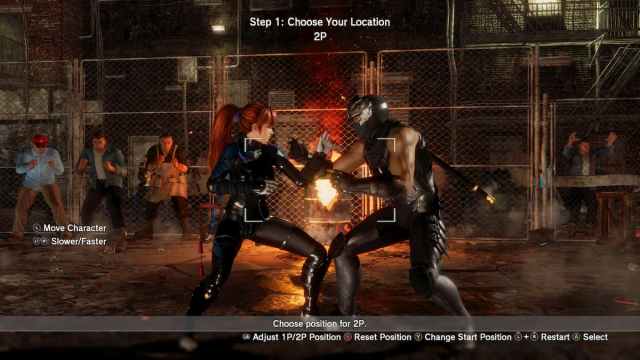
Next, you can select animations for both characters. Every attack string, hold, throw, taunt, damage reaction, intro, victory pose, and defeat animation available to a character can be used. This also includes simple animations like sidestep, walking, crouching, guarding, and more. There is an impressive number of animations at your disposal.
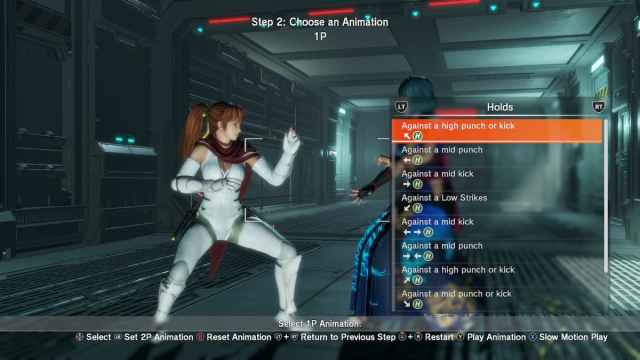
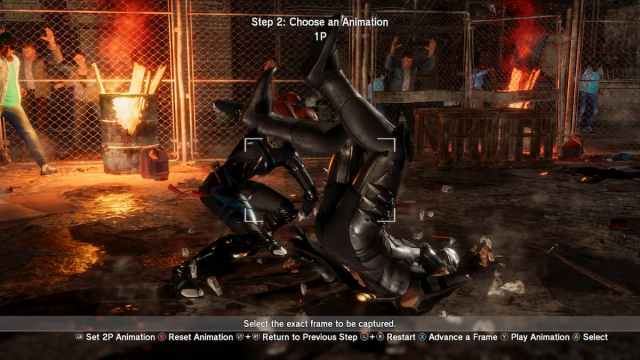
Make sure to use the “Advance a Frame” after selecting “Slow Motion Play” to move through animations frame by frame, then pause at the exact moment you want to capture. This is much better than trying to pause the animation running at normal speed.
After that, you can adjust the camera position or press X/Square to open the detailed settings menu. Here, you can tweak various image options and, more importantly, character-specific settings.
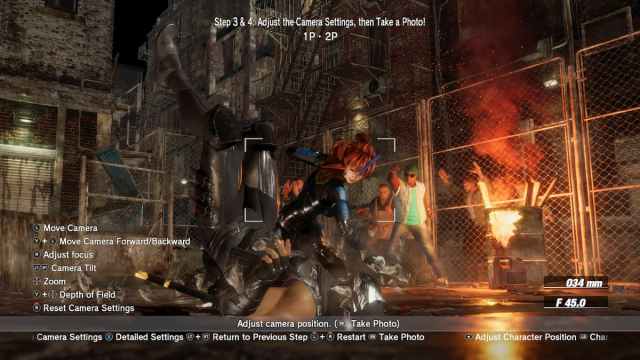
These include facial expressions, gaze direction, visibility options, and even the amount of sweat, mud, snow, and wetness applied to each fighter.
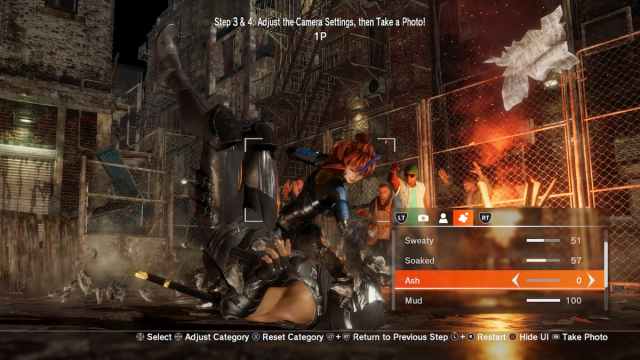
Once you’re done making adjustments, use your platform’s screenshot tool to capture the image. On PC, Steam’s default screenshot key is F12.
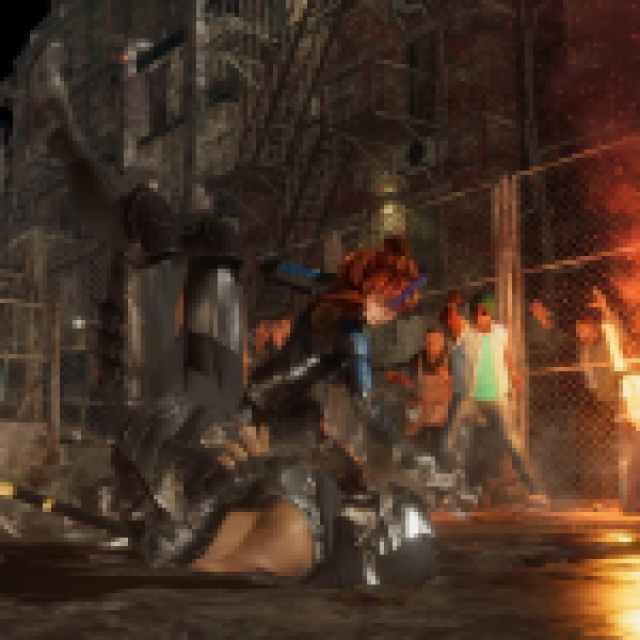

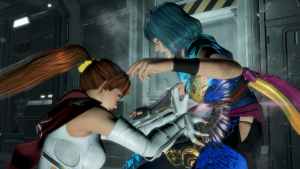
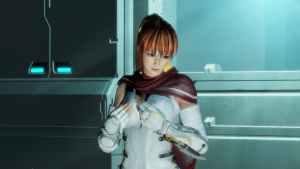
Overall, Photo Mode is a welcome addition to the franchise, even if the overall package is somewhat disappointing. Dead or Alive needs a proper comeback with modern features such as crossplay and rollback netcode if KOEI TECMO hopes to win back longtime fans and attract newcomers to the series.
Still, the developers have confirmed that more content is on the way, including a new original character, and I really hope they consider improving the network side of things in an otherwise competent fighting game.


