
Where to Deposit Your Items in the Van in Outbound
Here are all the inventory management tips as well!

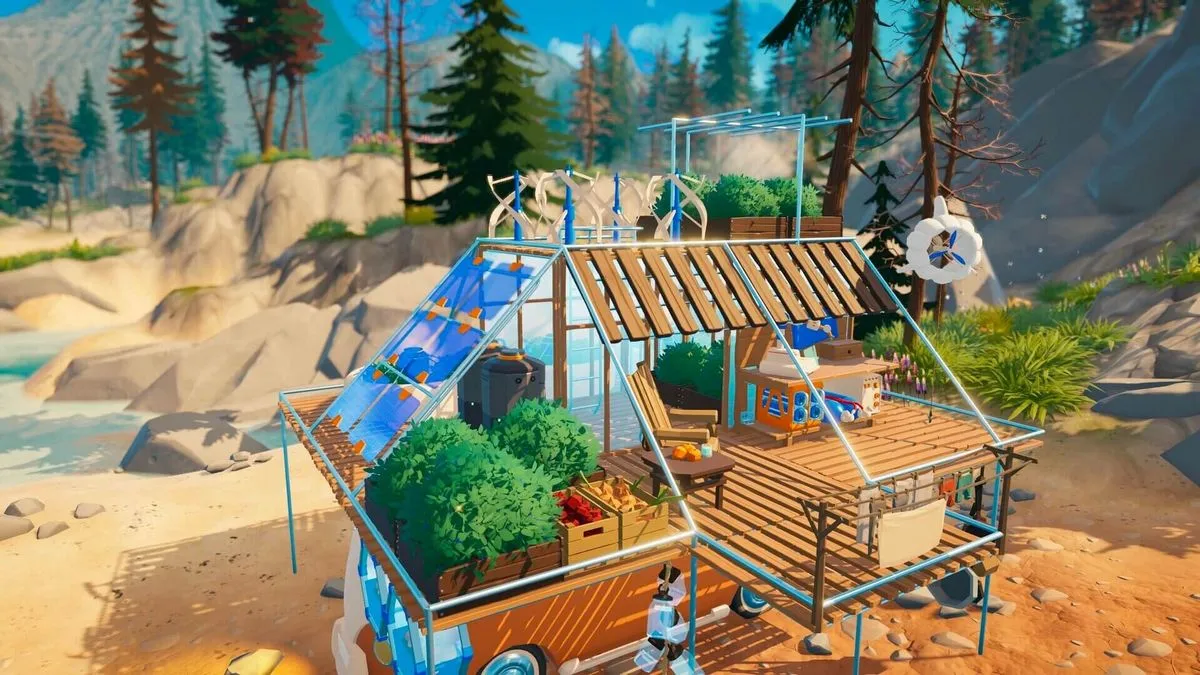
One of the earliest problems you’ll encounter in Outbound is getting encumbered by picking up a lot of items. The good news is that you can deposit your items in the van, but surprisingly, the tutorial objectives didn’t show this, at least on early versions of the game.
Here’s a quick guide on how to deposit those items and avoid getting encumbered in Outbound.
How to Store Items in Outbound
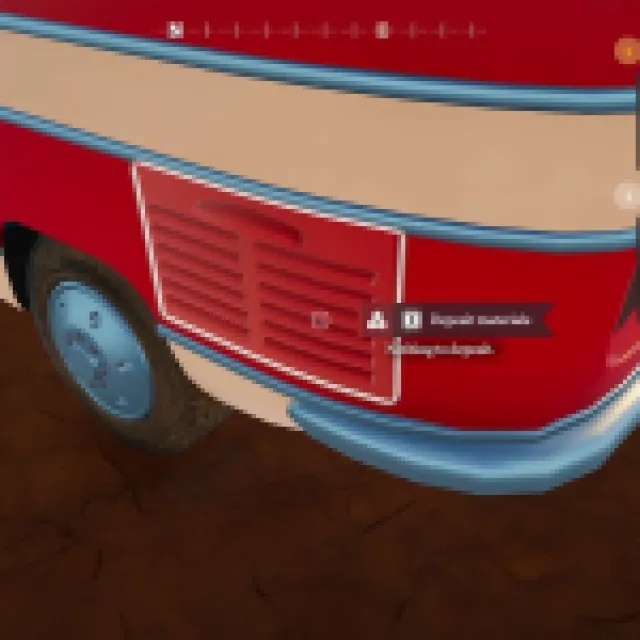
In Outbound, you start with a 20-item limit in your inventory. Items that stack still count toward that number, so if you have a stack of ten Scrap Metals and Everwood, they’ll count as 20 instead of two. Now, you can easily see how inventory management is going to be a challenge here, and that’s one of the reasons why you always bring your van with you.
To deposit your items or materials, go outside your van and head to the trunk, near the left rear wheel. You’ll see a storage container there that highlights only when you look at it, which makes it really hard to discover. Deposit your materials, and it should automatically deposit everything in your backpack.
However, there are times when you don’t want to deposit everything. For example, you want to have some Download Vouchers in your inventory at all times since you might encounter some random terminals or even just have some food in your backpack, just in case you get hungry.
To remove the auto deposit on some items, open your inventory or backpack and select the item you want to keep in your backpack. Once selected, it’ll open up a window where you can choose to drop, use, or consume the item (depending on what item is being selected). In the same window, look to the upper-right corner, and there should be an open padlock icon. Select that icon to lock the item and keep it in your backpack when storing items.
Next, some of you might be wondering how to pick up items in your van’s inventory. This one is a bit confusing as well, since you cannot really access your van’s item storage when selecting the storage container. What you want to do is to look up the container and look at the mirror. The mirror actually reflects what’s inside your inventory. If you hover over the mirror, you can select it, and it’ll show the storage information. You’ll see all your available materials, and you can also transfer items from this storage to your backpack.
Lastly, you don’t always want to hold onto items like Everwood, Scrap Metal, Everwood Planks, Rocks, or other crafting resources in your backpack. If these items are in your inventory, your building menu, workstation crafting windows, and other crafting tools will automatically pick up the needed items in your inventory without you having to get them.


