
How To Fix the Helldivers 2 Audio Crackling and Sound Issues
I can finally hear again!

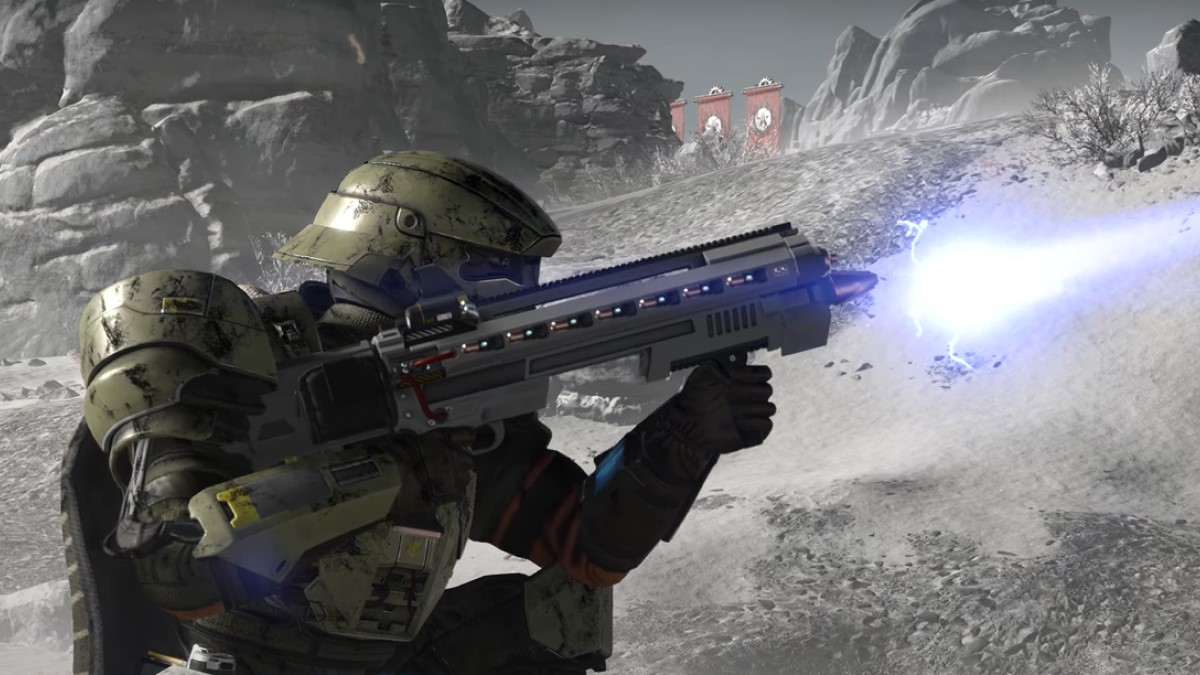
Helldivers 2 has been available for more than a year at this point, and while the PC version is largely in a decent state, some technical problems remain unaddressed. There are still no upscaling options like DLSS available in-game, and for many players, reported audio issues can be quite frustrating.
Here are my recommendations to fix most major audio problems and get rid of that crackling sound in Helldivers 2.
Bluetooth Users with Audio Crackling in Helldivers 2
If you’re using an audio output device connected to your PC via Bluetooth and experiencing static or crackling audio while playing Helldivers 2, here are a couple of recommendations to resolve the issue. Try both and see which one works.
Disable Hands-Free Telephony
This recommendation comes directly from Arrowhead Game Studios and has been known to work for a lot of players.
- Open Windows settings and select the Bluetooth & devices tab.
- You should see your dedicated Bluetooth headset here.
- Right-click on it and select Properties. Open the Services tab and uncheck Hands-free telephony from the list.
Launch Helldivers 2 and see if that fixes the problem. If not, there’s another recommendation.
Disable Bluetooth Audio Gateway Service
Arrowhead Game Studios has also highlighted the second recommendation and has worked for multiple players on Steam and Reddit.
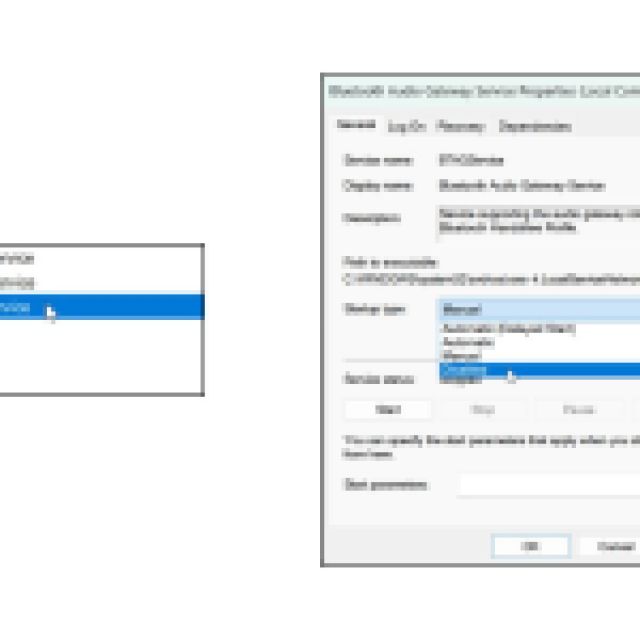
- In Windows Search, type “Services” and open the first result.
- Here, scroll down until you find “Bluetooth Audio Gateway“
- Right-click on it and press stop.
- Next, right-click on it and select Properties.
- Here, switch Startup type to Disabled.

Additional Recommendations
You can also try the following recommendations to fix audio issues in Helldivers 2.
Set Correct Communication Devices
In Windows, you want to ensure that the game is using the correct audio input and output type. Here’s an easy way to set this up for Helldivers 2.
- Launch Helldivers 2 and minimize the game.
- At the right of the taskbar, right-click on the audio icon and select “Audio Mixer“.
- Here, you should see Helldivers 2 under Apps.
- Expand it and make sure the correct devices are selected for input and output
- For instance, I use NVIDIA Broadcast on my mic to clean out background audio so I’ll have to select that instead of the regular mic option.


This might be set to default, which isn’t always the correct one.
Additional step (VERY USEFUL): If you don’t use in-game voice chat, set your input device to something other than your headset if your headset also has a dedicated microphone. For some inexplicable reason, this has worked for a lot of players in resolving their audio issues.
Disable Spatial Sound
If you have Spatial Sound enabled for your headset, then disabling it can potentially fix audio issues in Helldivers 2 as well.
- Open Windows Settings, followed by System and then Audio.
- Here, locate your output device and click on it. Scroll to the bottom and under “Advanced Settings” set Spatial Audio to “off“.

Verify Game Files
It’s also possible that something went wrong during the download, update, or installation process, and something is corrupted/missing in the game files. To make sure that isn’t the case, verify the game files in Steam.
- Open Steam and navigate to your library
- Here, right-click on Helldivers 2 and select Properties
- In the Installed Files tab, click on Verify integrity of game file
Update Audio Device Drivers
If your headset comes with dedicated software, you can probably update the firmware drivers of the device through it. I recommend doing that just in case.
These recommendations should improve your audio experience in Helldivers 2 and hopefully fix the audio crackling at the very least. Arrowhead Game Studios is aware of this issue, but it’s still common for a lot of players, especially those with Bluetooth headsets.


