
How To Enable DirectX 12 Mode in Mecha Break
This needs to be fixed.

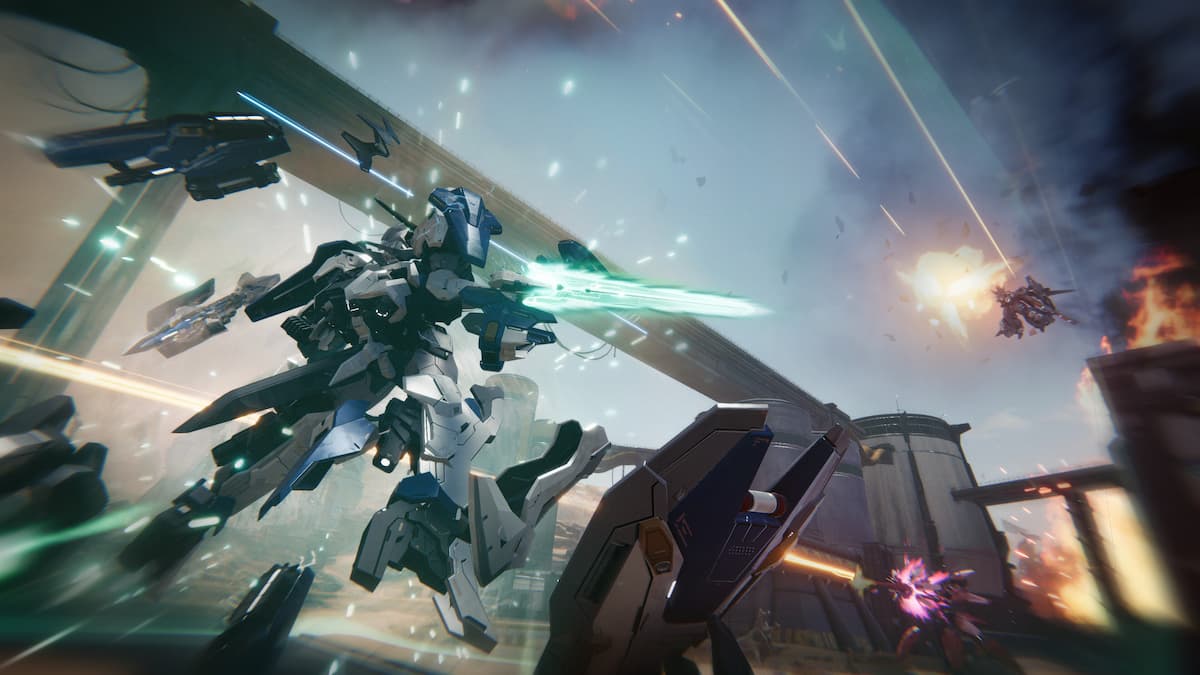
Mecha BREAK took flight on PC and Xbox Series S|X, delivering high-octane mecha combat and plenty of customization at your disposal. The PC version, in particular, is well optimized with support for several performance-improving features like upscaling and frame generation. Though these aren’t available for everyone.
Mecha BREAK has seemingly disabled DirectX 12 support for a wide range of GPUs, including some that are compatible with it, making it impossible for players to access useful features like frame generation. Thankfully, you can enable DirectX 12 regardless of your GPU in Mecha BREAK, and here is how.
Enable DirectX 12 Mode in Mecha Break
According to Mecha BREAK, you need an RTX 4070 Super at minimum to enable DirectX 12, which makes zero sense because that means that even a regular RTX 4070 can’t launch the game in DirectX 12 mode.
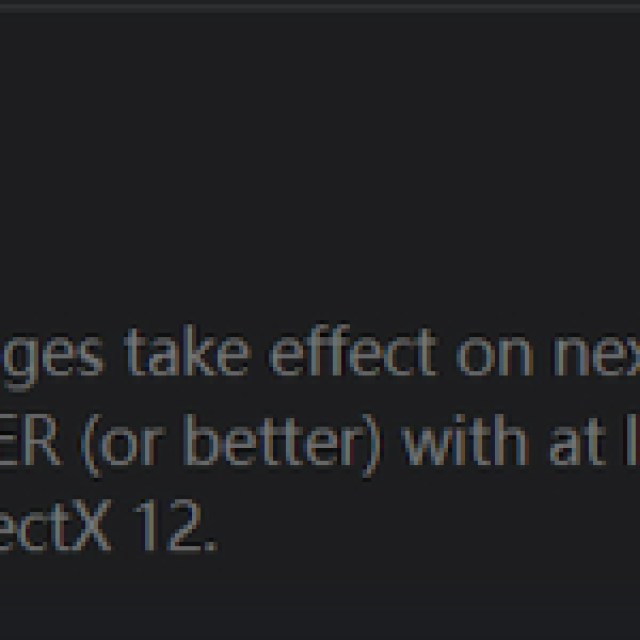

It also means that the game isn’t exactly using a proper metric to lock out GPUs for basic functionality that is available readily for any GPU that supports DirectX 12.
To get around this confusing lock, you can switch the renderer to DirectX 12 with a simple configuration
edit by following the steps below:
- Open Steam and navigate to your library.
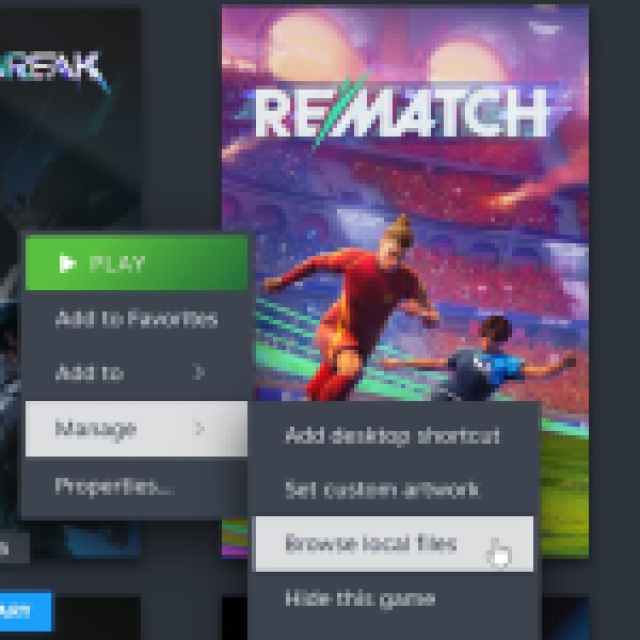
- Right-click on Mecha BREAK, select Manage, followed by Browse local files
- Navigate to the following folders:
\MechaBREAK\Game\MechaBreak\Oversea
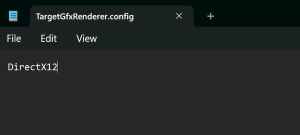
- Here, open the TargetGfxRenderer.config file with a text editor like Notepad or Notepad++
- Now, simply set DirectX11 to DirectX12 as shown below.
- Save the file and exit.
After that, the game will launch properly in DirectX 12 mode instead of DirectX 11. Keep in mind, your GPU needs to support DirectX 12 for this to work. If it’s something like the GTX 700 series, the game won’t launch in DX12 mode at all.
After these steps, the launcher will still say that the game is running in DirectX 11 mode, but if you see a shader compilation at the start of launch, it likely hints that it worked successfully. You can also check the renderer using something like Rivatuner, and it should say D3D12 instead of D3D11.
I hope that the developers address this problem because not allowing the game to run in DirectX 12 mode due to an arbitrary GPU requirement for a fairly recent card limits performance across the board. Mecha BREAK isn’t a demanding game, but older GPUs, even in the RTX 3000 series, can make good use of frame generation for a higher resolution experience.


