
Tempest Rising Complete Controls for PC
Memorize each key.

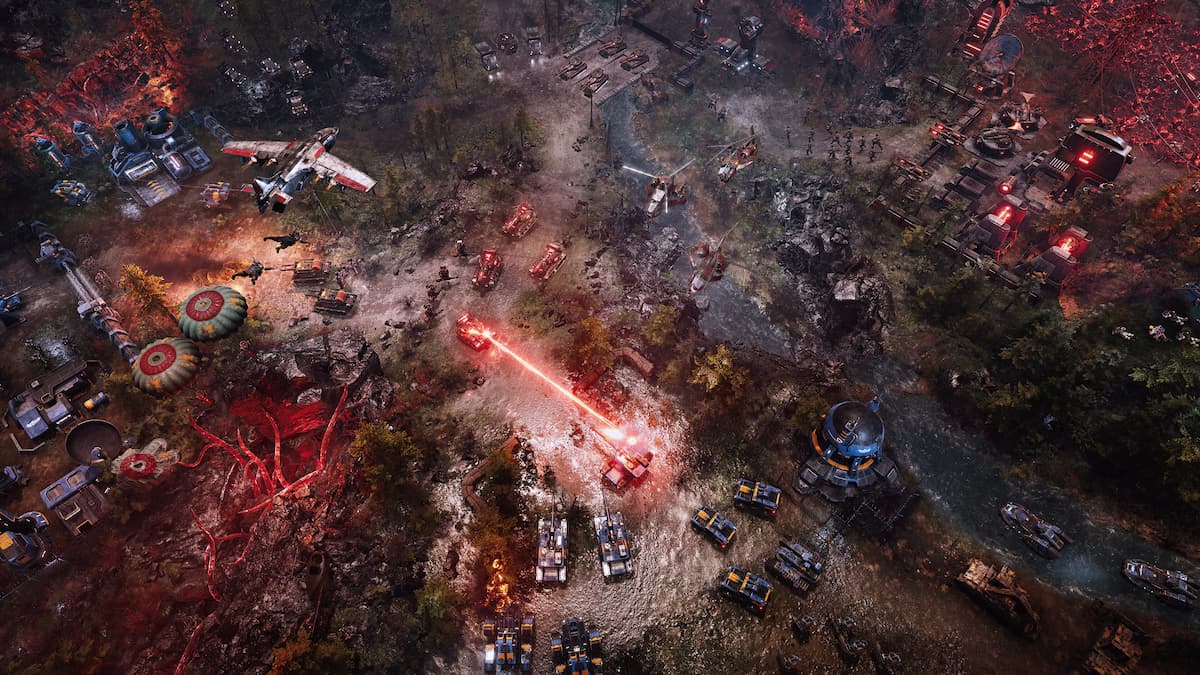
Like any solid RTS, you should be able to do practically everything with your keyboard, using dedicated shortcuts for every major feature and accessing any menu. Tempest Rising delivers on this in spades, taking us back to the glory days of the genre when the Command & Conquer series was at its peak.
If you want to take the Tempest Rising experience seriously, especially in competitive mode, you’ll need to memorize every shortcut, hotkey, and selection tool. Here are the complete controls for the PC release of Tempest Rising.
Tempest Rising Complete Controls
Here are the default controls for Tempest Rising on PC.
Camera
| Action | Input |
|---|---|
| Scroll Up | Up |
| Scroll Down | Down |
| Scroll Right | Right |
| Scroll Left | Left |
| Zoom In | Mouse Wheel Up |
| Zoom Out | Mouse Wheel Down |
| Enable Freelook | Middle Mouse Button |
| Center on Base | Backspace |
| Rotate Left | [ |
| Rotate Right | ] |
| Teleport Camera to Hotspot | Space |
| Toggle Map Pings | Thumb mouse button |
| Teleport Camera to Spot (0 – 9) | Num (0 – 9) |
| Create Camera Spot (0 – 9) | Alt + Num (0 – 9) |
Commands
| Action | Input |
|---|---|
| Select All Combat Units | Q |
| Select All Combat Units on Screen | W |
| Attack | A |
| Stop | S |
| Guard | D |
| Patrol | F |
| Hold | G |
| Unit Command Slot 1 | Z |
| Unit Command Slot 2 | X |
| Unit Command Slot 3 | C |
| Unit Command Slot 4 | V |
| Unit Command Slot 5 | B |
| Player Command Slot 1 | H |
| Player Command Slot 2 | J |
| Player Command Slot 3 | K |
| Player Command Slot 4 | L |
| Player Command Slot 5 | ; |
| Select All Infantry Units | Shift + Q |
| Select All Vehicle Units | Ctrl + Q |
| Select All Air Units | Alt + Q |
| Select All Infantry Units on Screen | Shift + W |
| Select All Vehicle Units on Screen | Ctrl + W |
| Select All Air Units on Screen | Alt + W |
Build Grid
| Action | Input |
|---|---|
| Rotate Structure Anti-Clockwise | Mouse Wheel Down |
| Buildings Tab | E |
| Defenses Tab | R |
| Infantry Tab | T |
| Vehicles Tab | Y |
| Aerial Tab | U |
| Build Menu Options (1 – 12) | F1 – F12 |
| Repair | I |
| Sell | O |
| Toggle Power | P |
| Rotate Structure Clockwise | Mouse Wheel Up |
| Place last constructed structure | N |
| Build Menu Option (1 – 10), Queue 5 | Shift + (F1 – F10) |
Selection
| Action | Input |
|---|---|
| Select Group (1 – 10) | 1 – 10 |
| Change Primary Selection Type | Tab |
| Change Primary Selection Order | \ |
| Change Primary Selection by Type Backwards | Ctrl + Tab |
| Change Primary Selection by Unit Backwards | Ctrl + \ |
| Create Group (1 – 10) | Ctrl + (1 – 10) |
| Add Control Group (1 – 10) To Selected | Shift + (1 – 10) |
| Move Selection To Control Group (1 – 10) | Alt + (1 – 10) |
Does Tempest Rising Have Controller Support?
No, Tempest Rising does not have controller support and is meant to be played on a keyboard and mouse.


I doubt you would have a great time with a controller anyway. This game’s pacing is closer to the Red Alert series than something like Halo Wars.
Can you Rebind Controls in Tempest Rising?
Yes, you can rebind some of the controls in Tempest Rising. Anything that doesn’t have a combination (for example, Shift + 1) can be rebinded in the game to whatever you want.
I’m glad to see that the developers of Tempest Rising have taken optimizing controls seriously with shortcuts, assignments, and even building. Knowing all the shortcuts is essential if you’re playing on higher difficulties or against other players.


