
God of War Ragnarok PC Performance Explained, Is It Worth It?
Port report, Atreus!

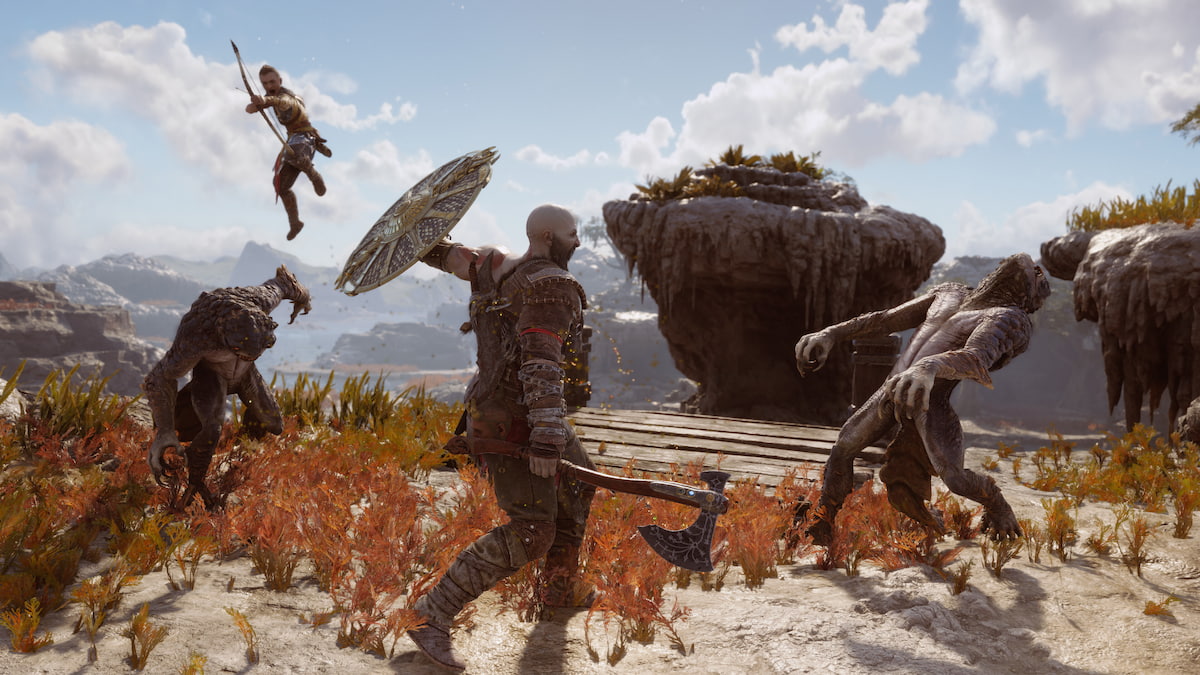
God of War Ragnarok is the latest PlayStation exclusive to join the PC platform through both Steam and Epic Games Store. Like the 2018 release, Jetpack Interactive is back and has worked closely with Santa Monica Studio to deliver another port of the technically impressive cross-generation title from 2022. PC players finally got to play titles like Horizon: Forbidden West and Ghost of Tsushima this year, but how does God of War Ragnarok run on PC? Let’s find out.
God of War Ragnarok PC Performance
God of War Ragnarok has an extensive graphics menu with plenty of settings to adjust. You have a lot of control over what you want to improve and where you can squeeze out some additional performance. Like any good PC port, you can also see the changes being made dynamically in the menu as well. It takes a bit for the textures to load in, but it’s a great feature that we’ve seen in other PlayStation titles’ ports as well.
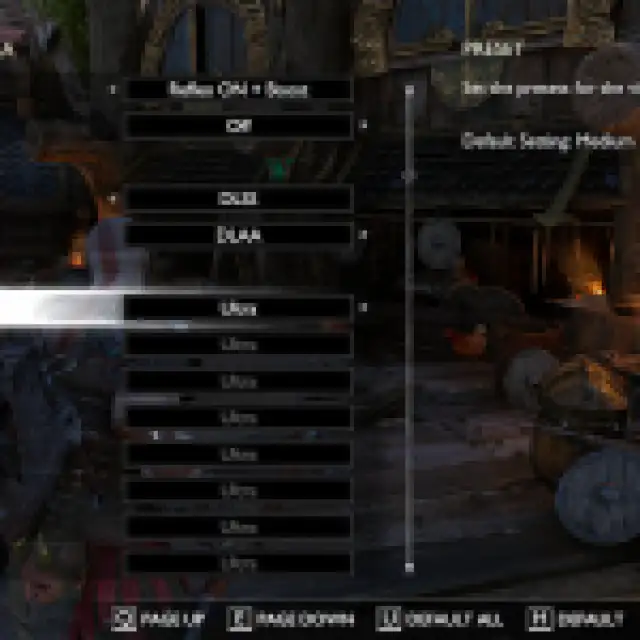

Since this is technically a PS4 title, most users with 4-6 GB of VRAM can have a decent experience on the low settings, which looks surprisingly great. Here is a comparison between the game’s Low, and Ultra preset.


If you have an aging GPU like the RX 580 or a GTX 1650, you can either lock the framerate to 30 FPS with TAA or use AMD Frame Generation for a smoother experience with some added latency.
There’s also a shader compilation sequence at the start of each launch, ensuring no stutters during the actual gameplay. We’re happy to report that we couldn’t spot any significant stutters during our first ten hours with the title, which also has one of its more demanding sections.
God of War Ragnarok Demanding Settings
While individual settings aren’t going to massively make a difference in terms of performance, we recommend giving the following a look in God of War Ragnarok if you want to squeeze out some extra frames.
| Graphics Setting | Suggested Value |
|---|---|
| Lighting | Medium |
| Models | Medium – High |
| Shadows | Medium |
| Reflections | Medium |
| Tesselation | Medium |
Tesselation, in particular, can have a pretty significant impact depending on the area you’re in. It doesn’t dramatically impact the visuals either but rather controls the bumpiness of the surface. Here’s a comparison between the Medium and High tesselation values:


Should You Use Frame Generation in God of War Ragnarok?
Yes, absolutely. It doesn’t matter if you’re getting a decent experience on a high-end GPU; frame generation will only improve the performance at minimal latency cost. In our testing, we didn’t notice any image breakup or major issues with UI elements.

The game has support for both AMD Frame Generation as well as DLSS Frame Generation, and FSR Frame Generation can be combined with DLSS if you don’t have a 4000 series NVIDIA GPU.
In my testing, FSR 3.1 FG combined with DLAA at 1440p on an RTX 4070 Super yielded better performance than DLSS FG, but not by much. Either implementation is fine to use, and we recommend testing out both. While DLSS FG wasn’t working at launch, the developers have fixed this with Patch 2.
God of War Ragnarok Controller Support
God of War Ragnarok has full controller support on PC, and you can use both Xbox and PlayStation controllers. The DualSense also supports haptic feedback and adaptive triggers on PC as well. You will need to use a wired connection for these specific features to work on PC.
Should You Get God of War Ragnarok on PC?
Yes, God of War Ragnarok is an excellent port that improves on the first release in almost every way. The performance scales well across the board, and there is support for upscaling technologies like DLSS 3.5, XeSS, and FSR 3.1.
God of War Ragnarok on PC also has frame generation support, which can improve performance considerably for high-end users and provide a decent experience for users with aging GPUs. Players can also disable or reduce the intensity of post-processing effects, including Film Grain and Motion Blur. Camera controls can be fully customized, and the game plays quite well on a keyboard and mouse as well.

The developers have been monitoring feedback on Steam forums, and we’ve already seen multiple issues fixed since its launch. This is a positive sign for future updates as well, and it was the same for the 2018 release as well.
There are a few limitations, though, largely due to the presentation style. If you want to further customize your PC experience, here is how you can adjust the FOV in God of War Ragnarok, and skip the intro videos.


