
Planet Coaster 2 Save File Location, Controller Support, and PC Features Explained
Steam Deck verified!

The original Planet Coaster was released on PC and consoles in 2016, and nearly eight years later, the sequel is finally out. Planet Coaster 2 is an evolution of the first title and builds upon the excellent foundation with a host of new ideas, deeper customization, and a more socialized experience thanks to its multiplayer features. If you’re looking for your local progress though, here is the save file location for Planet Coaster 2, and everything else you need to know about its PC port.
Planet Coaster 2 Save File Location
The save files for Planet Coast 2 can be found in the following location on PC.
C:/Users/[Windows Username]/Saved Games/Frontier Developments/Planet Coaster 2/[STEAM ID]/Saves/
The “Saves” folder contains the unique save files, but we recommend backing up the entire “Planet Coaster 2” folder for future use.
Faster Navigation
To quickly navigate to the same location, you can use Windows Run. To bring up Run, press the Windows and R keys together.
%USERPROFILE%/Saved Games/Frontier Developments/Planet Coaster 2
This will take to the same location as above if you simply input it in Windows Run.
Does Planet Coaster 2 have Steam Cloud Support?
Yes, Planet Coaster 2 has full Steam Cloud support for the Steam version. This means that you can pick up your progress on multiple devices including the Steam Deck.
Outside of Steam Cloud, Planet Coaster 2 has support for the following Steam features at launch:
- Steam Family Share
- Trading Cards
- Achievements
- Steam Deck Verified
- Steam Workshop
- Offline Support (after first boot)
Fixing Planet Coaster 2 Controller Issues
Planet Coaster 2 does not have native support for PlayStation controllers on PC, which means you’ll have to enable Steam Input for it. Xbox controllers will work without a problem. The game also doesn’t have PlayStation prompts.
- Make sure Planet Coaster 2 isn’t running.
- Open Steam and navigate to your library
- Here, right-click on Planet Coaster 2 and select Properties
- In the Controller tab, select the Enable Steam Input option under Override for Planet Coaster 2
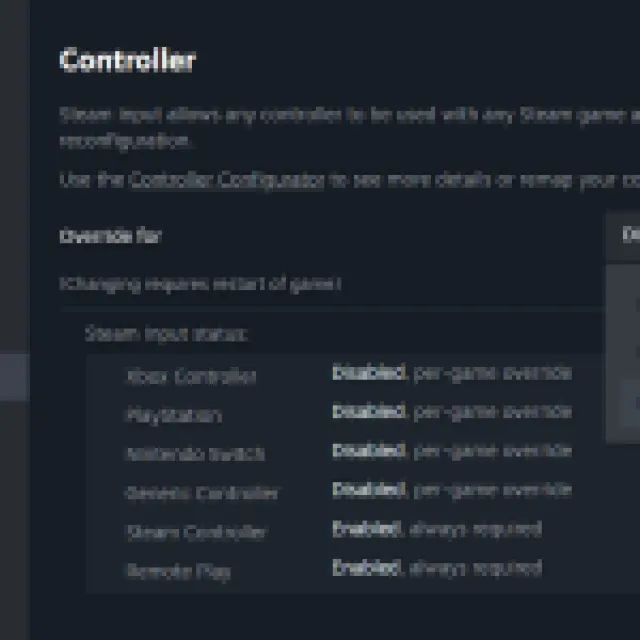
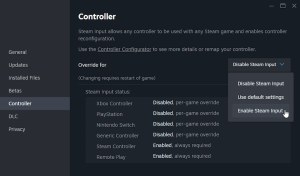
Once Steam Input is enabled, your DualShock 4 or DualSense will work as intended. This is the same for Nintendo Switch controllers as well. You will still need to get used to the Xbox prompts sadly.
Check Detected Controllers
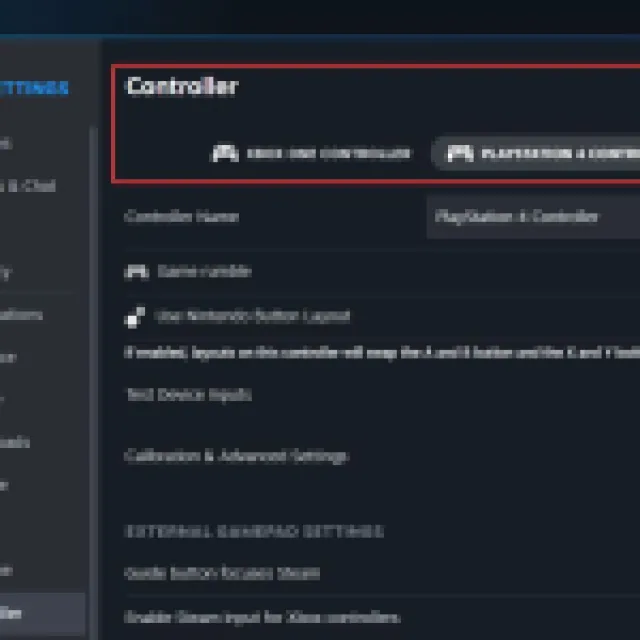
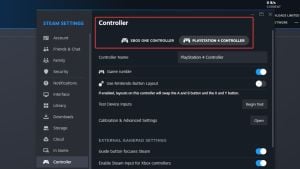
If you still can’t get your controllers to work, make sure Steam is detecting the ones you have plugged in. To check detected controllers in the Steam client, simply select Steam > Settings > Controller:
Can You Remap the Controls in Planet Coaster 2?
Yes, players can rebind keyboard and mouse controls, but it doesn’t extend to all the individual controls. For instance, tilting, and rotating the camera is done with the middle mouse button, and can’t be bound to another key.
Cross-Platform Support in Planet Coaster 2
While the game doesn’t have traditional multiplayer, players can share and download blueprints and parks in-game between PC, Xbox Series X|S, and PlayStation 5. Players can also build, manage, and explore each other’s parks asynchronously by jumping one at a time into a shared save.
Currently, the game does not have native support for MacOS, but players can still enjoy it on their preferred platforms using NVIDIA’S GeForce NOW.


