
Ninja Gaiden 4 Complete Controls for PC and Controller
No hesitation.


Ninja Gaiden 4 is out now on PC and console, and it’s an exhilarating action title from Team Ninja and PlatinumGames, bringing the best of both worlds to fans and newcomers alike. There is a lot to learn, thanks to its complex combat mechanics, offering plenty of replayability.
If you need a reference to its default scheme, here are the complete controls for Ninja Gaiden 4, whether you’re playing on keyboard and mouse or a controller.
Ninja Gaiden 4 Complete Controls for Controller
Here are the complete controls for Ninja Gaiden 4 if you’re playing on an Xbox or PlayStation controller.
| Action | Xbox | PlayStation |
|---|---|---|
| Heavy Attack | Y | Triangle |
| Shuriken / Interact | B | Circle |
| Light Attack | X | Square |
| Jump | A | X |
| Block | RT | R2 |
| Dodge | RT | R2 |
| Use Raven Gear | RB | R1 |
| Pause | Menu Button | Options Button |
| Movement | Left Stick | Left Stick |
| Camera Control | Right Stick | Right Stick |
| Reset Camera / Lock-on | RS | R3 |
| Enter Bloodraven Form | LT | L2 |
| Item Wheel | LB | L1 |
| Shortcut | View Button | View Button |
| Dash | LS | L3 |
| (While Running) Slide | LS | L3 |
| Twin Blades | D-Pad Up | D-Pad Up |
Ninja Gaiden 4 Complete Controls for Keyboard and Mouse
Here are the complete controls for Ninja Gaiden 4 if you’re playing the game on a keyboard and mouse.
| Action | Input |
|---|---|
| Move Forward | W |
| Move Backward | S |
| Move Left | A |
| Move Right | D |
| Full Circle | F |
| Light Attack | Left Mouse Button |
| Heavy Attack | Right Mouse Button |
| Jump | Space |
| Shuriken / Interact | R |
| Use Raven Gear | C |
| Block | Shift |
| Item Wheel | Alt |
| Enter Bloodraven Form | Ctrl |
| Dash | V |
| Reset Camera / Lock-on | Q |
| Switch Lock-on: Left | Tab |
| Switch Lock-on: Right | E |
| Shortcut | Y |
| Twin Blades | 1 |
| Open Menu | Escape |
Can You Rebind Controls in Ninja Gaiden 4?
Yes, you can completely rebind controls in Ninja Gaiden 4 for both keyboard and mouse, as well as controllers. There are several presets for both types, but you’re free to rebind the controls for the custom profile.
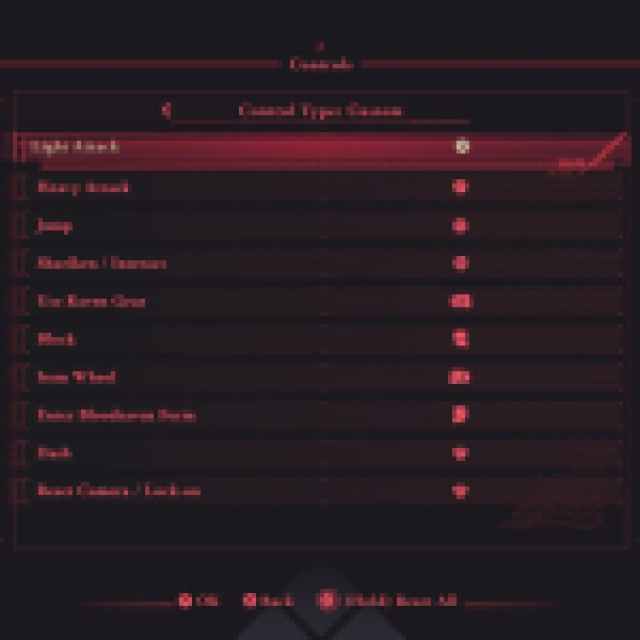
The developers have put in a lot of effort to make the controls accessible, and there is even a one-handed mode available.
Ninja Gaiden 4 Controller Support on PC
On PC, Ninja Gaiden 4 has native support for Xbox and PlayStation controllers with appropriate button prompts for each controller type.
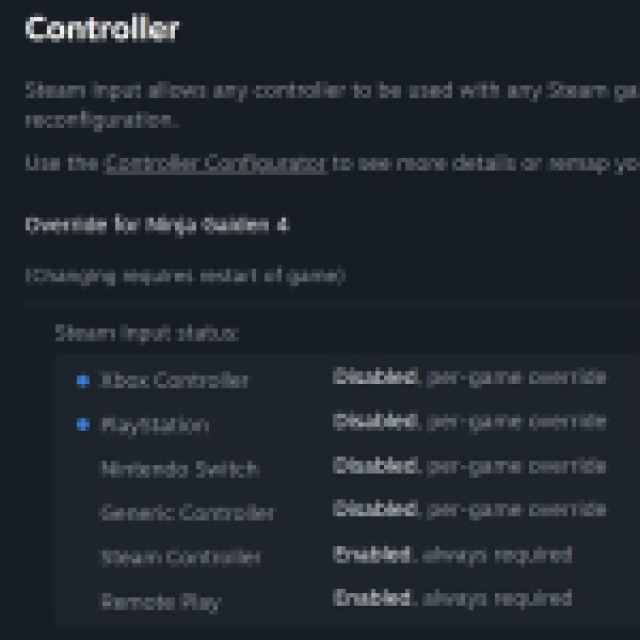
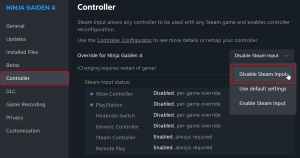
If you’re having any problem with your controllers not working properly, try disabling Steam Input for Ninja Gaiden 4.
- Make sure Ninja Gaiden 4 isn’t running.
- Open Steam and navigate to your library.
- Here, right-click on Ninja Gaiden 4 and select Properties.
- In the Controller tab, select the Disable Steam Input option under Override for Ninja Gaiden 4
Overall, the developers have put in quite a bit of effort to make the experience customizable, so there are no input barriers before the actual game. I think that a controller is the way to go here, but there isn’t really anything stopping you from using a keyboard and mouse in Ninja Gaiden 4, either.
If you’d like to see more helpful guides, news, or features from Prima Games, please consider adding us to your preferred sources (available to users in the US or India).


