
How To Fix the Hytale Crashing Issues on PC
Try these first!

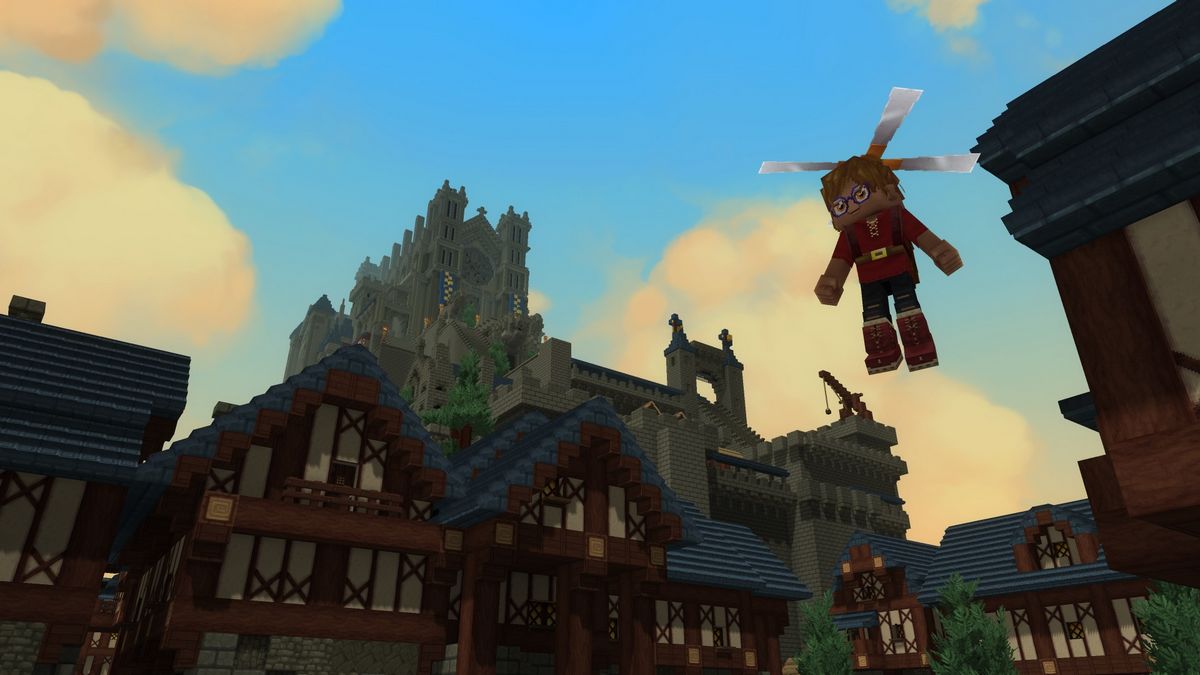
Hytale is out now in early access on PC, and it’s in a pretty decent state in terms of both content and stability. You don’t need much to run it, but if you are running into crashes or general stability issues, here are a few recommendations to help improve your PC experience.
Check for Updates
While the client will automatically check for updates when you launch it, there’s a chance it doesn’t. In the Hytale launcher, click on the settings gear at the top left and select “Check for Updates“.
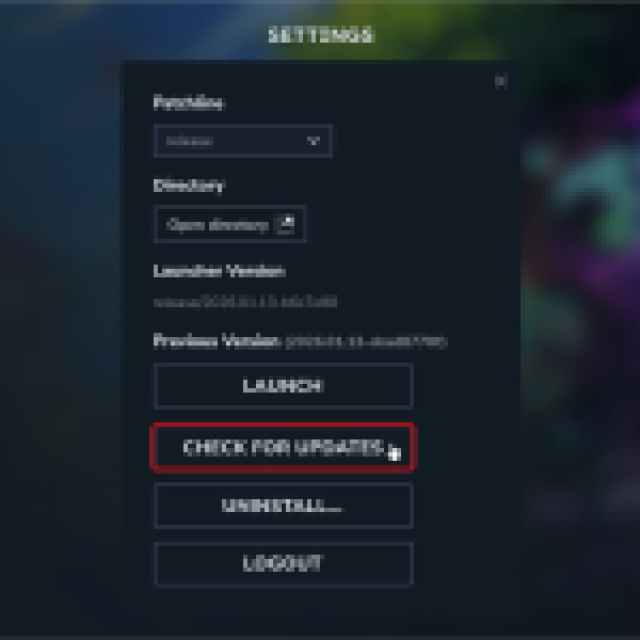
Ideally, this should check your game files as well because there isn’t a way to verify the integrity of game files in the launcher.
If you’re playing the game in offline mode, I highly recommend going online since this is an early access release and the developers are already releasing hotfixes and patches. You want to be on the latest version at all times. The first Hotfix for Hytale has already addressed several crashes:
Fixed a crash that could occur when selecting certain hair styles followed by eyebrows in character creation.

Fixed a crash when taking screenshots for people with non-English folder names.

Fixed a crash when using buckets. This broke some workbenches, they will need to be destroyed and placed back down to resolve the issue.
Update Windows
Hytale supports both Windows 10 and 11, but you need to be on version 1809 at a minimum if you’re playing this on Windows 10. If you haven’t updated Windows in a while and you’re having launch issues in Hytale and other titles, now is probably a good time.
Update Drivers
Make sure you’re using the latest GPU drivers, especially if you haven’t updated those in a while. You can get the latest drivers for your GPU from the links below.
Make Sure You Have Enough Free Space
Even though Hytale requires 8 GB to install, the developers recommend at least 20 GB of free space for a smooth experience, especially if you plan on tackling creative mode and creating plenty of game worlds. Here is the saved game size in Exploration mode:
- ~661 MB for 5000×5000 blocks
- ~27 KB per 32×32 chunk
If you don’t have enough free space, you’ll run into crashes, stuttering, and other stability issues. Additionally, an SSD is recommended, no matter what settings you’re playing at.
Generic Troubleshooting
Apart from that, you can try the following generic troubleshooting suggestions.
- Update DirectX and Visual C++ Redistributables.
- Switch to your dedicated GPU if you’re playing on a laptop.
- Add the game’s folder to your antivirus list of exceptions or exclusions.
- Update your BIOS, especially if you’re using an Intel 13th or 14th-generation processor.
- Make sure that the date and time on your Windows are correct.
- Make sure you actually meet the minimum system requirements.
Reinstall Hytale
In the launcher, you can uninstall the game and reinstall it. It’s not a huge download, and if nothing works, that’s one way to ensure that all your game files are in their intended state.
Overall, Hytale is in a really good state, and if you have a decent system, achieving a high framerate is not difficult even with the settings cranked up to their highest values.


