
Dying Light The Beast Save File Location on PC
Beastly files.


Dying Light: The Beast is now available on PC, and it’s the third installment in the Dying Light franchise, finally bringing back the series’ beloved main character, Kyle Crane. Set in Castor Woods, the game features a vast open world with plenty to do and explore.
While the game thankfully supports cloud saves, if you want to access your local data on PC, here is the save file location for Dying Light: The Beast.
Dying Light The Beast Save File Location
| Client | Save File Location |
|---|---|
| Steam | C:\Program Files (x86)\Steam\userdata\[Steam ID]\3008130 |
You can find the save files for Dying Light: The Beast in the corresponding folder with its Steam ID (3008130) in the path above inside the Steam installation folder.
If you just want the save files, you can go further into the same location and open the “save” folder:
C:\Program Files (x86)\Steam\userdata\[Steam ID]\3008130\remote\out\save
Though for ease of use, I recommend backing up the entire 3008130 folder. You can keep that in another folder with a Dying Light: The Beast label if you want.
Dying Light The Beast Backup Saves
If your save files are corrupted, you can access your backup saves and rename those accordingly to replace your corrupted files in the location above. Backup saves for Dying Light: The Beast can be found at the following location:
C:\Users\[Windows Username]\Documents\dying light the beast\out-save_backups
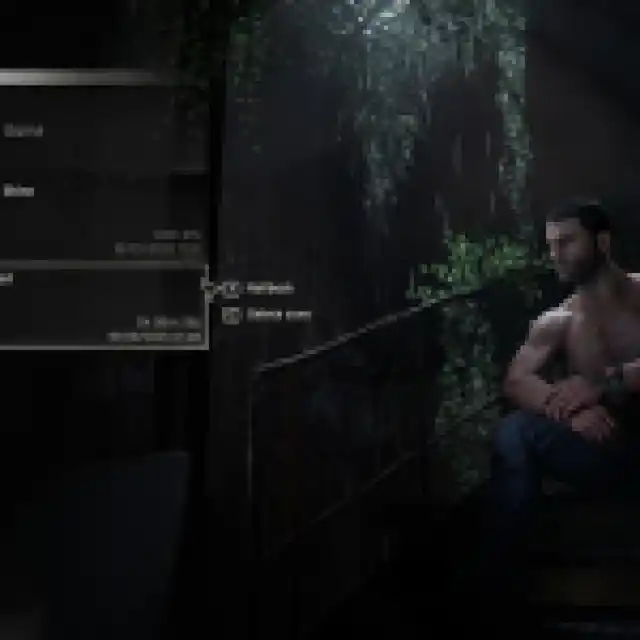
Additionally, you can have more than one active campaign in Dying Light: The Beast. From the main menu, starting a new game gives you the option to choose a different slot. I’m not sure how many are available in total, but it seems to be a fair number.

Dying Light The Beast Steam Features
On Steam, Dying Light: The Beast comes with support for Steam Cloud, so you can easily access your progress on different devices as long as you have logged into your Steam account. In addition to Steam Cloud, the game comes with the following features as well:
- Steam Achievements: There are over 30 achievements to unlock in Dying Light: The Beast on Steam.
- Steam Family Sharing: If you own a copy of Dying Light: The Beast, members of your Steam family can access it in their libraries.
- Full Controller Support: Dying Light: The Beast comes with native support for Xbox and PlayStation controllers.
- Steam Input: If you’re using a non-traditional controller instead of the usual Xbox or PlayStation ones, you can use Steam Input to simulate XInput.
Dying Light: The Beast is another excellent PC release from Techland, which runs well and looks the part as well.
If you’d like to see more helpful guides, news, or features from Prima Games, please consider adding us to your preferred sources (currently available to users in the US or India).


