
Death Stranding 2 PC Complete Controls
Press F8 for photo mode.


Death Stranding 2: On the Beach is finally out on PC, and just like the original, there are tons of systems to master, whether it’s traversal, combat, or driving. Here are the complete controls for the PC version, whether you prefer to play with a keyboard and mouse or a controller.
Death Stranding 2 PC Complete Controls for Keyboard and Mouse
Here are the complete controls for Death Stranding 2, divided into sections for mouse-and-keyboard players.
General Controls
| Action | Key |
|---|---|
| Move Forwards | W |
| Move Backwards | S |
| Move Left | A |
| Move Right | D |
| Crouch / Stand | C |
| Walk | Ctrl |
| Sprint | Shift |
| Jump / Climb | Space |
| Center Balance (Left) | Left Mouse Button |
| Center Balance (Right) | Right Mouse Button |
| Hold Breath | Alt |
| Carry on Back | E |
| Melee Attack | V |
| Scan | Q |
| Turn Odradek Light On / Off | 3 |
| Perform Action | F |
| Activate Terminal | F |
| Use / Dismount Vehicle | F |
| Ready Tool | Right Mouse Button |
| Place Structure / Fire Weapon | Left Mouse Button |
| Adjust Structure (Up / Length / Curve) | Mouse Wheel Up |
| Adjust Structure (Down / Length / Curve) | Mouse Wheel Down |
| Switch Structure | R |
| Weapon Attachment (Activate / Deactivate) | G |
| Change Firing Mode | B |
| Weapon Light (On / Off) | Z |
| Reload Weapon | R |
| Change Zoom Factor | Alt |
| Switch Camera Left / Right | T |
| Focus | T |
| Compass Mode | X |
| Send Likes | Y |
| Communication | Y |
| Rest | N |
| Open Cargo Management | I |
| Pause / Open Ring Terminal | Tab |
| Weapons / Tools | 1 |
| Signs | 2 |
| Fieldwear | 3 |
| Cargo Options | 4 |
| Photo Mode | F8 |
Vehicle Controls
| Action | Key |
|---|---|
| Use / Dismount Vehicle | F |
| Accelerate | W |
| Brake / Reverse | S |
| Steer Left | A |
| Steer Right | D |
| Speed Boost | Shift |
| Jump | Space |
| Wheelie | V |
| Drift | Ctrl |
| Emergency Battery Charge | B |
| Compass Mode | X |
| Send Likes | Y |
| Communication | Y |
Private Room
| Action | Input |
|---|---|
| Private Room Action 1 – 4 | 1 – 4 |
Death Stranding 2 Complete Controls for Controller
Here are the complete controls for Death Stranding 2 if you’re playing with an Xbox or PlayStation controller.
| Action | Xbox | PlayStation |
|---|---|---|
| Move | Left Stick | Left Stick |
| Camera | Right Stick | Right Stick |
| Sprint | L3 | L3 |
| Switch Camera Left / Right | R3 | R3 |
| Jump / Climb | A | X |
| Crouch / Stand | RB | R1 |
| Hold Breath | Hold RB | Hold R1 |
| Balance (Left) | LT | L2 |
| Balance (Right) | RT | R2 |
| Scan / Odradek | LB | L1 |
| Compass Mode | Hold LB | Hold L1 |
| Perform Action / Interact | X | Square |
| Pick Up / Carry Cargo | Y | Triangle |
| Melee Attack | B | Circle |
| Ready Tool / Aim | LT | L2 |
| Fire / Use Equipment | RT | R2 |
| Reload Weapon | X | Square |
| Change Firing Mode | D-Pad Right | D-Pad Right |
| Weapon Light On / Off | D-Pad Left | D-Pad Left |
| Send Likes | View / Touchpad | Touchpad (Tap) |
| Communication | View (Hold) | Touchpad (Hold) |
| Open Cargo Management | Menu | Options |
| Pause / Ring Terminal | Menu | Options |
| Weapons / Tools | D-Pad Right | D-Pad Right |
| Fieldwear | D-Pad Left | D-Pad Left |
| Cargo Options | D-Pad Up | D-Pad Up |
| Signs | D-Pad Down | D-Pad Down |
| Photo Mode | View | Touchpad (Right Side) |
| Use / Dismount Vehicle | X | Square |
| Accelerate (Vehicle) | RT | R2 |
| Brake / Reverse (Vehicle) | LT | L2 |
| Steer (Vehicle) | Left Stick | Left Stick |
| Boost (Vehicle) | L3 | L3 |
| Jump (Vehicle) | A | X |
| Drift (Vehicle) | B | Circle |
| Scanner / Compass (Vehicle) | LB / Hold LB | L1 / Hold L1 |
Can You Rebind Controls in Death Stranding 2 on PC?
You can rebind keyboard and mouse controls in Death Stranding 2 from the dedicated remap section.
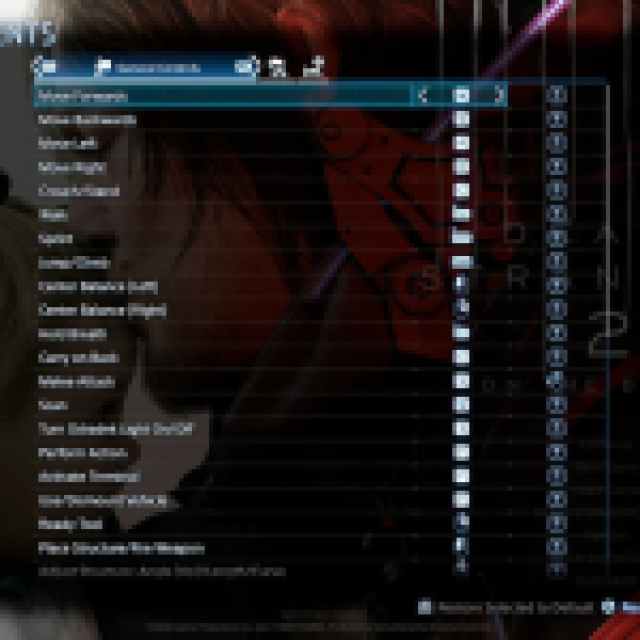
However, if you’re playing with a controller, you need to enable Steam Input to remap controls.
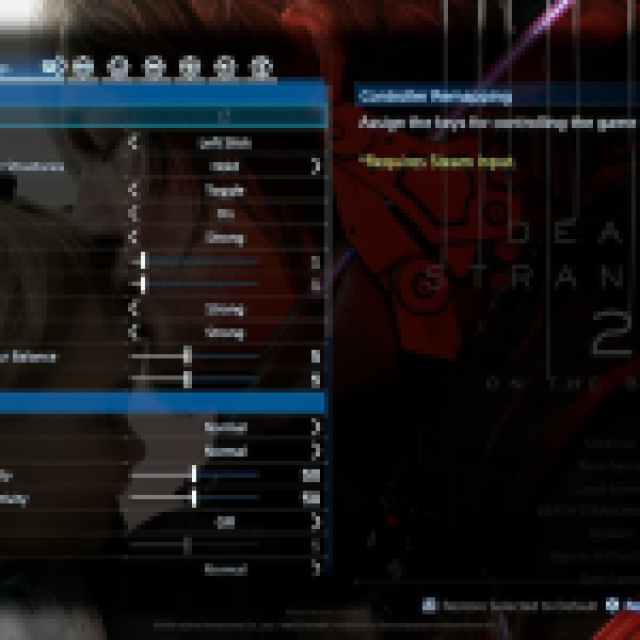
Death Stranding 2 DualSense Support on PC
On PC, when using a wired connection, Death Stranding 2: On the Beach has proper DualSense support with Haptic Feedback and Adaptive Triggers.
You can also change button prompts to whatever type you’re comfortable with, regardless of manufacturer, and there are tons of individual settings to adjust to fine-tune the controls experience.


