
Dead As Disco Complete Controls for PC
Never dead!

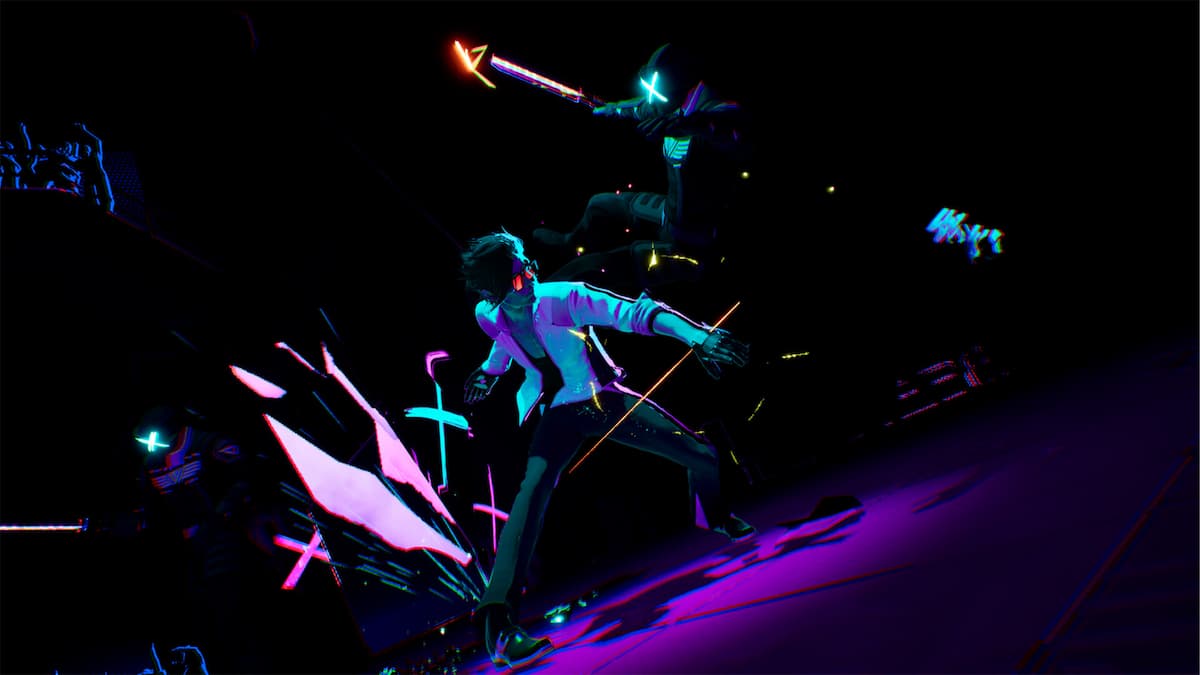
Dead As Disco is out now on Steam in early access, launching with four out of seven idols, each with their unique stages and boss battles. It’s a solid action experience with plenty of fun tracks and plays well on keyboard and mouse as well as a controller.
If you need a quick reference to the default scheme, here are the complete controls for Dead As Disco.
Dead As Disco Complete Controls for Controller
Here are the complete controls for Dead As Disco if you’re playing on an Xbox or PlayStation controller.
| Action | Xbox | PlayStation |
|---|---|---|
| Pause | Menu | Options |
| Abilities | RT | R2 |
| Drumstick Toss | LT | L2 |
| Movement | Left Stick | Left Stick |
| Dance Move | D-Pad | D-Pad |
| Counter | Y | Triangle |
| Finisher | B | Circle |
| Attack | X | Square |
| Dodge | A | Cross |
| Camera | Right Stick | Right Stick |
| Takedown | Y + B | Triangle + Circle |
Dead As Disco Complete Controls for Keyboard and Mouse
Here are the complete controls for Dead As Disco if you’re playing on keyboard and mouse.
| Action | Input |
|---|---|
| Movement | W A S D |
| Attack | Left Click |
| Counter | Right Click |
| Finisher | E |
| Takedown | F |
| Drumstick Toss | R |
| Dance Move | T |
| Dodge | Space |
Can You Rebind Controls in Dead As Disco?
Yes, you can rebind controls for keyboard and mouse in Dead As Disco, but not for controllers. The default scheme for the controller is fairly intuitive and works well, but it would’ve been nice to have an option to tweak it.
Dead As Disco Controller Support on PC
On PC, Dead As Disco has native support for Xbox and PlayStation controllers, as well as appropriate button prompts for each controller type. You can also use any button prompt style by selecting the one you prefer in the controller settings, regardless of what you have plugged in.
Fixing Dead As Disco Controller Issues
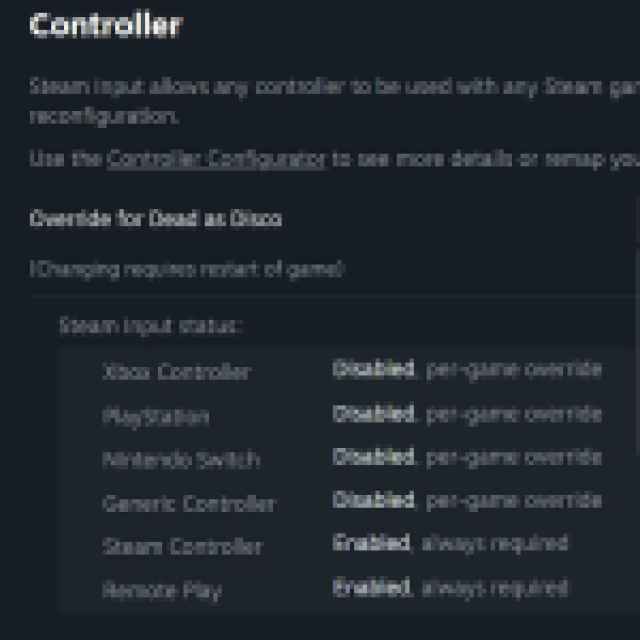
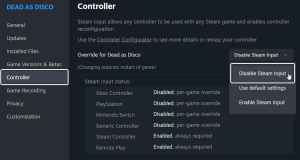
During my testing with a DualSense and Xbox Series controller, I noticed that if you have both controllers connected at the same time, preference was given to the Xbox controller, and you’d need to disconnect that and restart the game with the DualSense plugged in for it to register. Additionally, it’s recommended to disable Steam Input so the game uses the native profiles set up by the developers.
- Make sure Dead As Disco isn’t running.
- Open Steam and navigate to your library.
- Here, right-click on Dead As Disco and select Properties.
- In the Controller tab, select the Disable Steam Input option under Override for Dead As Disco.
While the game does have vibration support, it doesn’t support adaptive triggers or haptic feedback on the DualSense on PC.
Overall, Dead As Disco plays well no matter what you play it with, and I hope that developers continue to improve the controller experience and iron out these smaller issues, and hopefully add more customization when it comes to controller inputs.


