
Absolum Complete Controls for PC and Controller
RB does a lot.


Absolum is out now on PC and console, and it’s shaping up to be one of my favorite rogue-lite releases of the last few years. Guard Crush Games have knocked it out of the park, and it’s a great experience no matter what platform you play it on.
The PC version offers the most customization options, including support for multiple input types. If you need a quick reference to the default scheme for Absolum, here are the complete controls.
Absolum Complete Controls for Controller
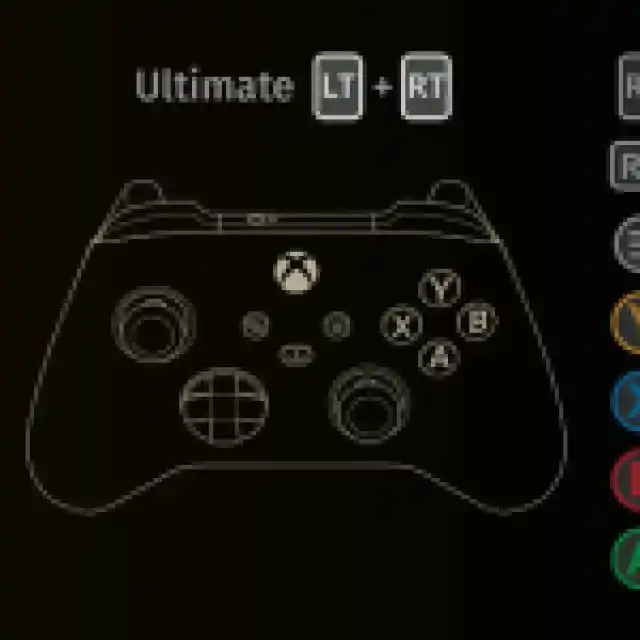
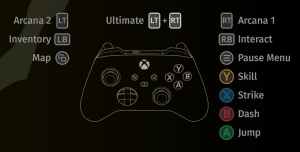
Here are the complete controls for Absolum, whether you’re playing on an Xbox, PlayStation, or Switch controller.
| Action | Xbox | PlayStation | Switch |
|---|---|---|---|
| Jump | A | X | B |
| Dash | B | Circle | A |
| Strike | X | Square | Y |
| Skill | Y | Triangle | X |
| Arcana 1 | RT | R2 | ZR |
| Arcana 2 | L2 | L2 | ZL |
| Interact / Throwable | RB | R1 | R |
| Inventory | LB | L1 | L |
| Map | View Button | Touchpad | – |
| Ultimate | LT + RT | L2 + R2 | ZL + RL |
| Pause Menu | Menu Button | Options Button | + |


Absolum Complete Controls for Keyboard and Mouse
Here are the complete controls for Absolum if you’re playing on a keyboard and mouse.
| Action | Input |
|---|---|
| Up | Up |
| Down | Down |
| Left | Left |
| Right | Right |
| Jump | Spacebar |
| Strike | Z |
| Skill | X |
| Dash | C |
| Interact / Throwable | A |
| Arcana 1 | Left Control |
| Arcana 2 | Left Shift |
| Inventory | D |
| Map | M |
Can You Rebind Controls in Absolum?
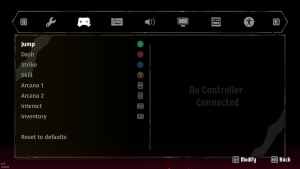
Yes, you can completely rebind controls in Absolum for both keyboard and mouse, as well as controllers. I’m glad that the developers haven’t restricted this to just keyboard and mouse or given players a few presets for controllers.

Absolum Controller Support on PC
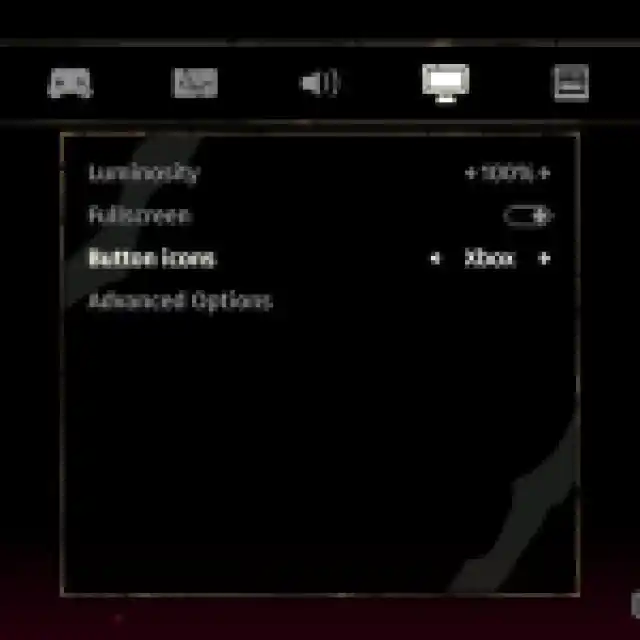
On PC, Absolum has native support for Xbox, PlayStation, and Switch controllers as well as appropriate button prompts for each controller type. To make sure you’re getting the right button prompts, select the Display tab in settings and switch between prompts by changing the Button Icons value.

If you’re having any problem with your controllers not working properly, try disabling Steam Input for Absolum.
- Make sure Absolum isn’t running.
- Open Steam and navigate to your library.
- Here, right-click on Absolum and select Properties.
- In the Controller tab, select the Disable Steam Input option under Override for Absolum.
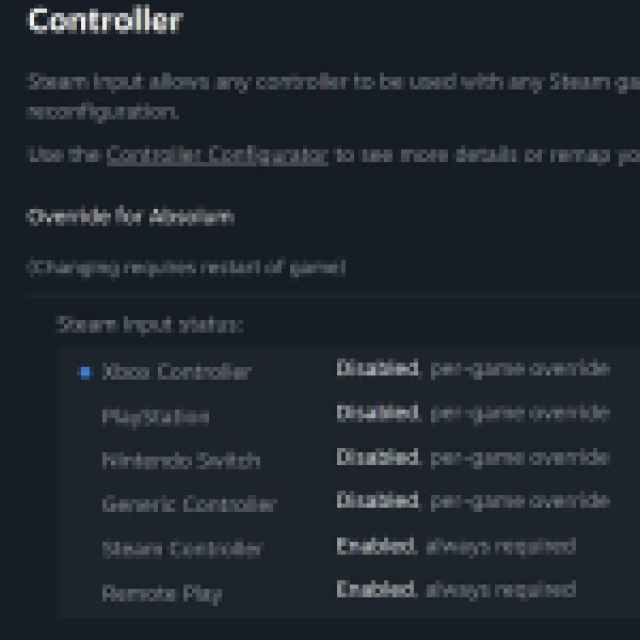

If you’re using any other generic controller, then you should keep Steam Input enabled.
Overall, Absolum plays well no matter what you play it with, and the developers have added plenty of customization options for each input type.
If you’d like to see more helpful guides, news, or features from Prima Games, please consider adding us to your preferred sources.


