
How to Make Waterlogged Terrain in Planet Zoo 2
All the details on the Waterlogged system in Planet Zoo 2 and how you can use it to fulfil requirements, as well as improving realism.


Planet Zoo 2 provides plenty of tools to build the ideal zoo and Wildlife Reserve, with Waterlogged a new system introduced in the sequel.
If you’ve got an animal or an ecosystem that requires Waterlogged in Planet Zoo 2 but have no idea what you’re being asked to do, we’ve got all the details.
What is Waterlogged in Planet Zoo 2?
Waterlogged in Planet Zoo 2 is a type of terrain that many animals require to meet their needs inside a habitat, though it can also be applied, and is required, to Ecosystems within a Wildlife Reserve.
Unlike actual water, which serves as it’s own form of terrain and fits a different threshold of requirement, Waterlogged terrain does not impact the general terrain requirements in the same way that placement of water does.
For example, adding the Waterlogged terrain on top of sand does not reduce the amount of sand in the enclosure, so you won’t be getting unhappy animals demanding you tweak their homes yet again.
Instead, Waterlogged is a visual effect that adds a surface layer of water, and is a great tool for making enclosures look more realistic, especially when creating swamps or water-adjacent pieces of land.
How to Make Waterlogged Terrain in Planet Zoo 2
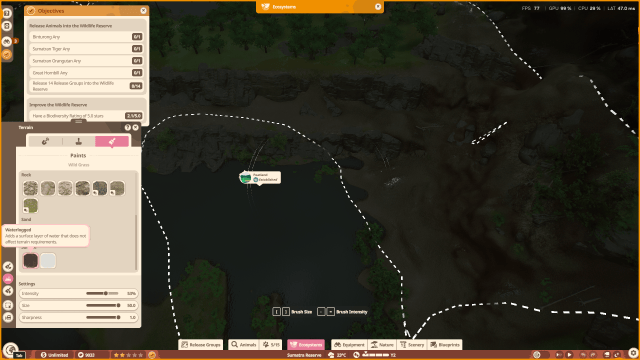
The tool for Waterlogged terrain is found in the Terrain Paint section of the game, listed right at the bottom, alongside Snow – which is another effect that doesn’t impact Terrain Requirements.
Here’s all the details you need on exactly where to find this setting.
- Open the Terrain menu on the left-hand side, marked by the peak of a mountain.
- Select the Terrain Paint option, which is the third in the top bar, represented by a paintbrush.
- Scroll down to find the Waterlogged option, found beneath Sand and Rock terrain paints.
- Adjust the settings for intensity, size, and sharpness as required.
- Use the Terrain Paint to fill out areas of effect you mark, as required.
- Close the Terrain Paint tool when you’re done.


