
Mewgenics Save File Location for PC
All your campaigns!

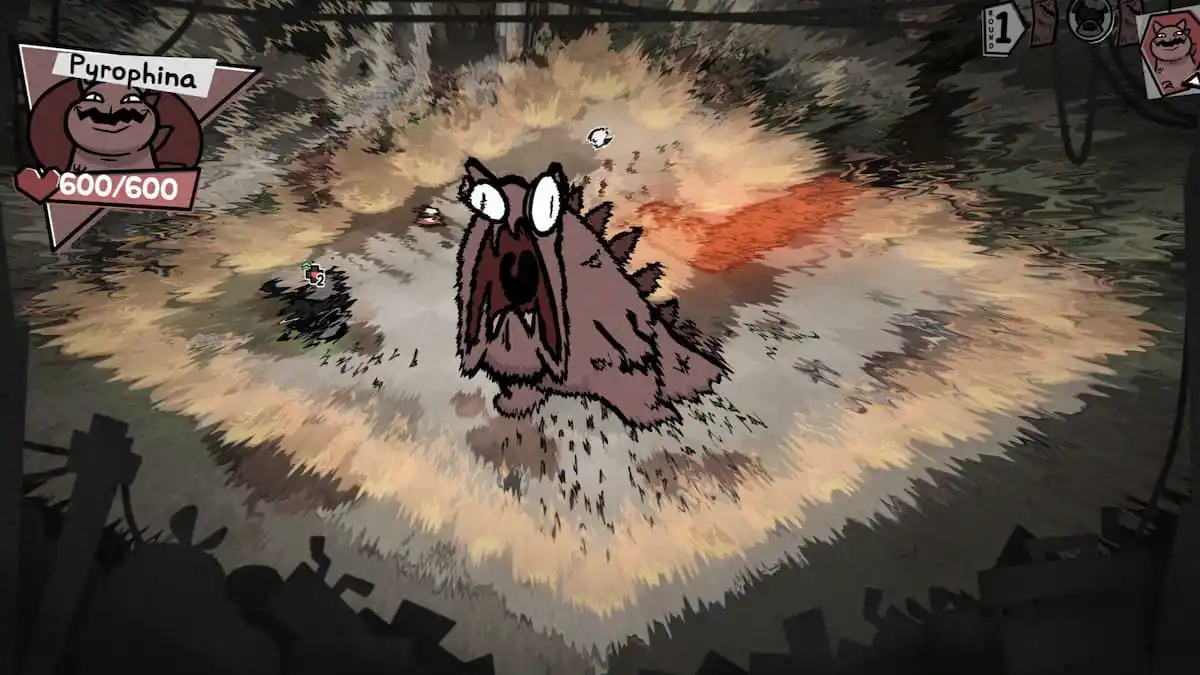
After its original reveal 14 years ago, Mewgenics is finally out on PC. It’s another critically acclaimed title from Edmund McMillen and Tyler Glaiel, which is already performing exceptionally well on Steam. With endless replayability and detailed content, your save data is pretty precious.
Thanks to Steam Cloud support, you don’t need to worry about losing your progress, but if you want to access your local progress data, here is the save file location for Mewgenics on Steam.
Mewgenics Save File Location
| Client | Save File Location |
|---|---|
| Steam | C:\Users\[Windows Username]\AppData\Roaming\Glaiel Games\Mewgenics\[Steam Numeric ID]\saves |
Inside it, you’ll find dedicated save (.sav) files for each active campaign in-game. It should be like this:
steamcampaign01.sav
There’s also a backup folder in case something goes wrong. That includes a backup copy of your existing save file, which you can rename and use as well. To keep things simple for future use, I recommend backing up the entire Mewgenics folder, which includes your default and backup save files.
You can access the same location by entering the following shortcut address in Windows Run or Windows Explorer:
%USERPROFILE%/AppData/Roaming/Glaiel Games/Mewgenics/
You can have up to three active campaigns in Mewgenics at the same time. In the Mewgenics folder, you can also find a settings.txt file, but almost everything in it is already customizable through the in-game settings menu as well. There’s also a logs folder which contains a debug file, but that’s only something you want to interact with if you want to send an error report or something.
Mewgenics Steam Features
On Steam, Mewgenics makes good use of several client features:
- Steam Cloud: Your progress is automatically uploaded to the Steam Cloud after you close the title, and it is downloaded again if you access the game on a different device.
- Steam Family Sharing: If you own a copy of Mewgenics, members of your Steam family can access it in their libraries.
- Steam Input: While the game has native support for multiple controllers, you can always use Steam Input to get third-party controllers to work without a hassle.


Mewgenics is also verified for the Steam Deck and runs really well on the handheld hardware thanks to its low system requirements. If you’re planning on buying Mewgenics for the Steam Deck, it’s the perfect way to experience the roguelite adventure on the go, and it doesn’t use a lot of power either.
Mewgenics Supported Languages
| Interface | Full Audio | Subtitles | |
|---|---|---|---|
| English | ✔ | – | – |
| French | ✔ | – | – |
| Italian | ✔ | – | – |
| German | ✔ | – | – |
| Spanish – Spain | ✔ | – | – |
| Portuguese – Brazil | ✔ | – | – |
Since there isn’t any voice acting in Mewgenics, language support and localization are limited to just text and interface. I hope that support for additional languages is planned for future updates, but for now, Mewgenics supports six languages.


