
Skate Story Complete Controls for Controller and Keyboard
Hmmm, Moon Vision.

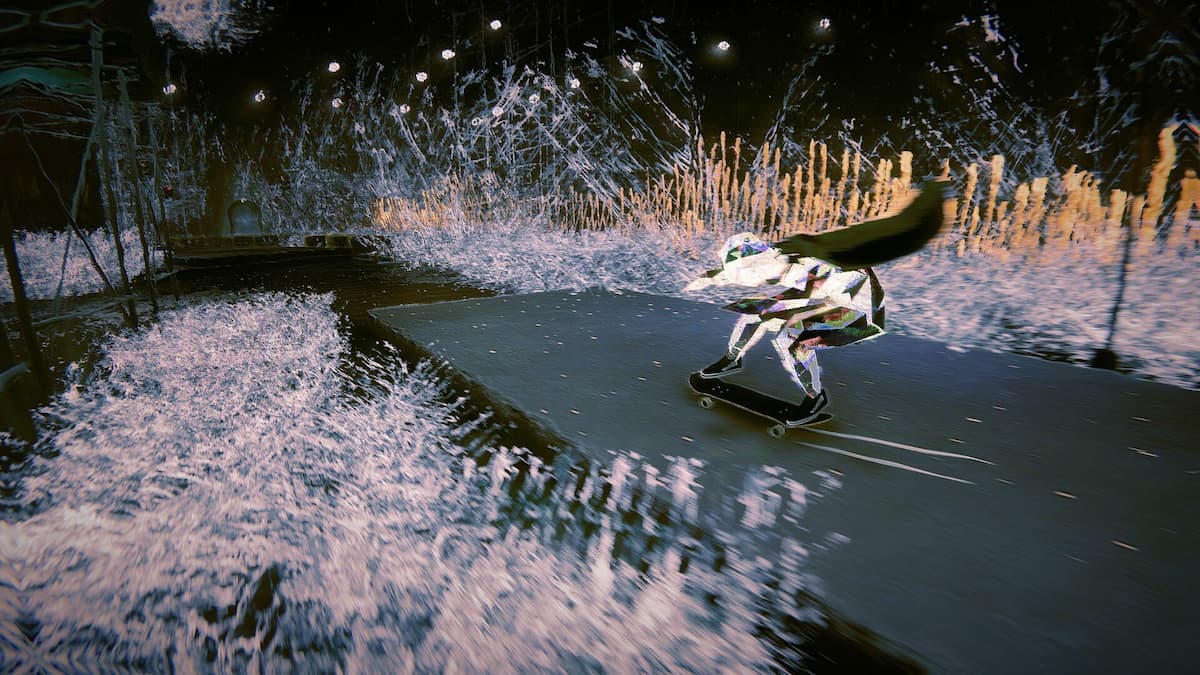
Skate Story delivers a satisfying skating experience with its tight controls, excellent visuals, and the variety of surfaces to ollie, kickflip, and grind. It plays a bit differently from contemporary skating titles, and if you need a reference to the default setup, here are the complete controls for Skate Story.
Skate Story Complete Controls for Controller
Here are the complete controls for Skate Story, whether you’re playing on an Xbox, PlayStation, or Switch 2 controller:
| Action | Xbox | PlayStation | Switch 2 |
|---|---|---|---|
| Skate / Walk | Y | Triangle | X |
| Push | (Hold) A | (Hold) X | (Hold) B |
| Powerslide | Turn Left or Right + X | Turn Left or Right + Square | Turn Left or Right + Y |
| Interact | X | Square | Y |
| Sprint | (Hold) A | (Hold) X | (Hold) B |
| Sprint (Toggle) | LS | L3 | Left Stick (Press) |
| Resurrect | View Button | Touchpad | Minus (-) |
| Moon Vision | D-Pad Right | D-Pad Right | D-Pad Right |
| Skater’s Mark | (Hold) D-Pad Left | (Hold) D-Pad Left | (Hold) D-Pad Left |
| Reset Camera | RS | R3 | Right Stick (Press) |
| (While Skating) Push | A | X | B |
| (While Skating) Ollie | B | Circle | A |
| (While Skating) Kickflip | RT | R2 | ZR |
| (While Skating) Heelflip | LT | L2 | ZL |
| (While Skating) Pop Shuvit | LB | L1 | L |
| (While Skating) Frontside Pop Shuvit | RB | R1 | R |
| (While Skating) Manual | Hold Back the Left Stick | Hold Back the Left Stick | Hold Back the Left Stick |
| (While in air) Stomp | X | Square | (While in the air) Stomp |
| (While Skating) Nollie Stance | D-Pad Up | D-Pad Up | D-Pad Up |
| Camera Control | Right Stick | Right Stick | Right Stick |
| Direction Control | Left Stick | Left Stick | Left Stick |
| (While Walking) Focus | RB / LB | R1 / L1 | R / L |
| Pause Screen | Menu Button | Options Button | Plus (+) |
These are separate from the moves and tricks you can perform using unique inputs.
Skate Story Complete Controls for Keyboard and Mouse
Here are the complete controls for Skate Story, whether you’re playing on keyboard and mouse:
| Action | Input |
|---|---|
| Movement | W, S, A, D |
| Pause | Escape |
| Interact | Enter |
| Slowmo | T |
| Moon Vision | Tab |
| Reset Camera | C |
| (While Skating) Push | Spacebar |
| (While Skating) Ollie | J |
| (While Skating) Get off the skateboard | Z |
| (While Skating) Brake | Left Ctrl |
| (While Skating) Backside Scoop | K |
| (While Skating) Kickflip (Back Flick) | H |
| (While Skating) Heelflip (Front Flick) | I |
| (While Skating) Powerslide | Y |
| (While in the air) Stomp | Left Shift |
| (While Skating) Nollie Stance | U |
| Get on Skateboard | Z |
| Sprint | Left Shift |
| Options | Tab |
| Resurrect | R |
| Skater’s Mark | Q |
Can You Rebind Controls in Skate Story?
Yes, you can rebind the controls in Skate Story for both keyboard and mouse, as well as the controller.
Skate Story Controller Support on PC
On PC, Skate Story has native support for Xbox and PlayStation controllers, with the correct button prompts displayed in-game as well.
If you don’t see the correct in-game prompts while using a PlayStation controller, disable Steam Input for Skate Story:
- Make sure Skate Story isn’t running.
- Open Steam and navigate to your library.
- Here, right-click on Skate Story and select Properties.
- In the Controller tab, select the Disable Steam Input option under Override for Skate Story.
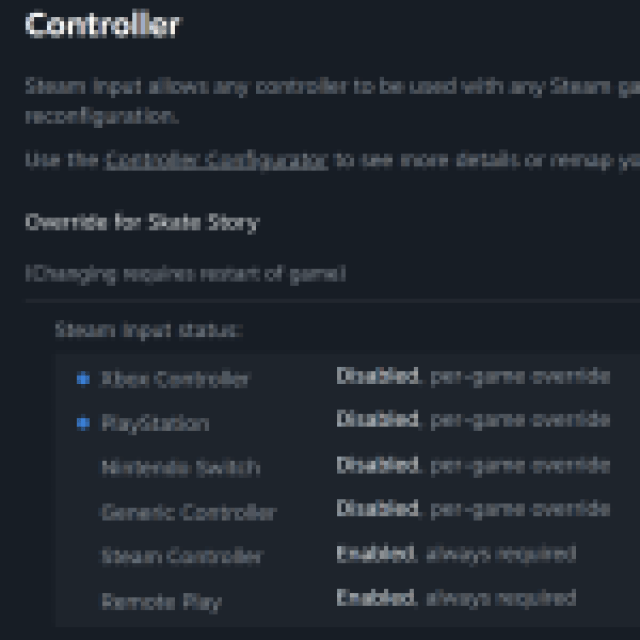
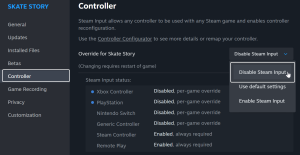
Being able to view and remap the control scheme was added to Skate Story on the day of release, and while the interface for it is a bit basic, it gets the job done.


