
Marvel Cosmic Invasion Save File Location for PC
Cosmic files!


Marvel Cosmic Invasion is out now on PC and consoles, and it’s another fun beat ’em up from Tribute Games, this time with a massive Marvel roster. It runs great on all platforms, but the PC version has support for additional input methods and all the Steam features, including cloud saves.
If you’re looking for your local progress data, though, here is the save file location for Marvel Cosmic Invasion on PC.
Marvel Cosmic Invasion Save File Location
| Client | Save File Location |
|---|---|
| Steam | C:\Program Files (x86)\Steam\userdata\[STEAM USER ID]\2753970\remote |
If you can’t figure out what your Steam ID is in the userdata folder, then sort it by date, and the latest one should be the one to open. Inside it, the 2753970 folder represents Marvel Cosmic Invasion. Inside it, you’ll find the remote folder, which has the GameSave save (sav) file. This is what you’re concerned with if you want to back up your progress for future use.
Reset Hero Progress in Marvel Cosmic Invasion
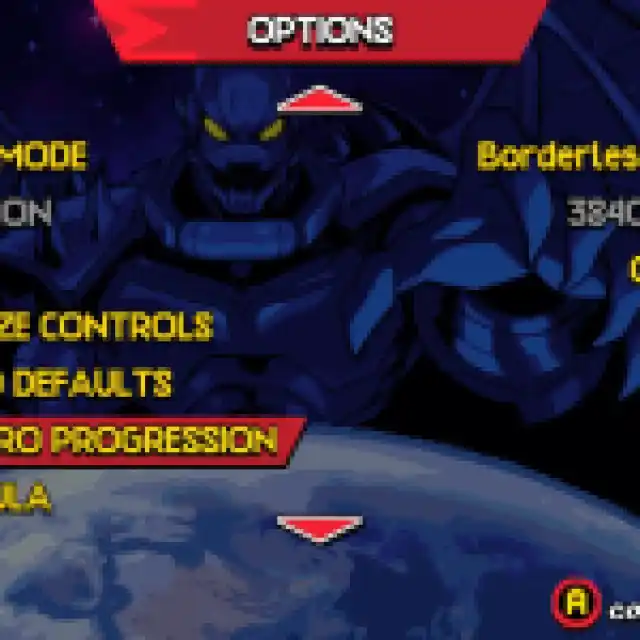
If you just want to reset the progress of your heroes, then you can do that in-game as well. Head into options and scroll down to the bottom, and you’ll find the “Reset Hero Progression” option. Hit that, and all your heroes will be back to the starting level.

Marvel Cosmic Invasion Steam Features
Marvel Cosmic Invasion has the following features on Steam:
- Steam Family Sharing: If you own a copy of Marvel Cosmic Invasion, members of your Steam family can access it in their libraries.
- Remote Play Together: You can stream the game with your friend and allow them to play with you as if it were a local co-op setting.
- Steam Cloud: Your local data is uploaded to the Steam Cloud and redownloaded on every other device where you have Steam installed if you want to pick up your progress elsewhere, like the Steam Deck, where it runs really well.
- Steam Input: While the game has native support for multiple controllers, you can always use Steam Input to get third-party controllers to work without much trouble.
If you’d like to see more helpful guides, news, or features from Prima Games, please consider adding us to your preferred sources.


