
How To Transfer Your Ball X Pit Demo Save to the Full Release
Balls transfer.

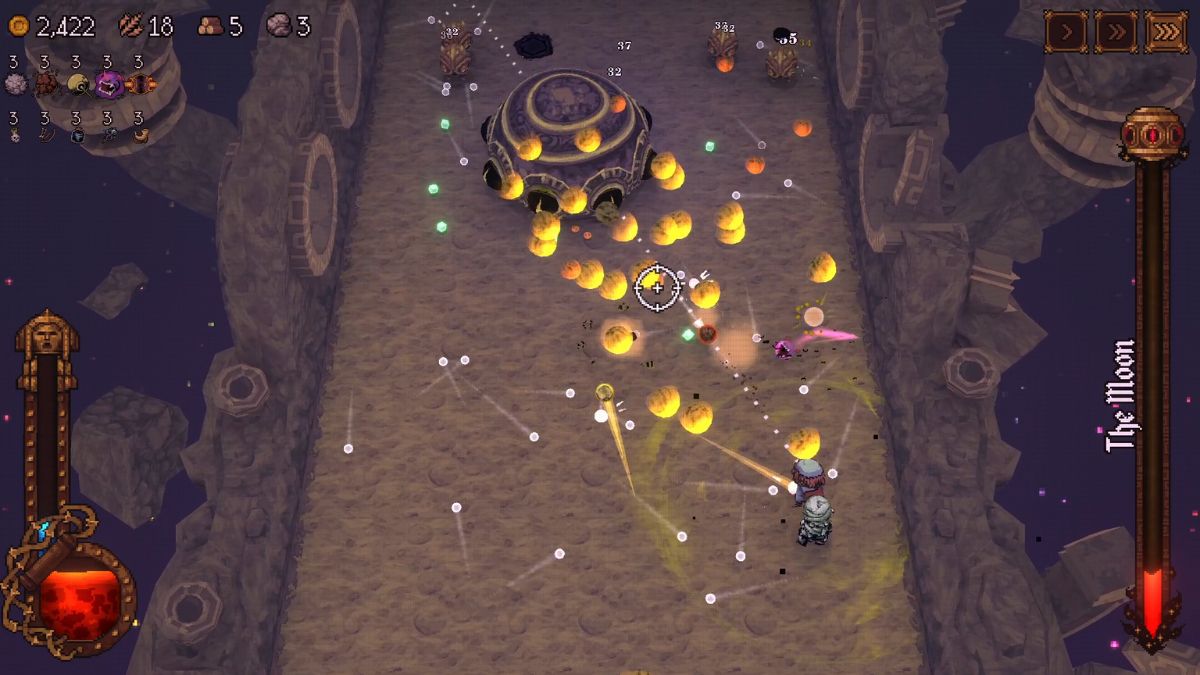
Ball X Pit is out now on PC, and it’s another unique rogue-lite bound to take up hours of your time. We had a blast playing through it and gave it one of our highest scores of the year; I’m sure many players were enjoying its demo in anticipation.
If you’ve been playing the demo and can’t access your progress in the full release, here is how to manually transfer your save files in Ball X Pit.
Transfer Demo Saves for Ball X Pit
Although progress transfer for Ball X Pit should start automatically, if it does not, you will need to move the save files manually to access your demo progress in the main release. Here is how to do it:
- First, head over to the following location:
C:\Users\<Windows Username>\AppData\LocalLow\Kenny Sun\BALL x PIT Demo
- Copy the contents of this folder.
- Now, head over to the following location:
C:\Users\<Windows Username>\AppData\LocalLow\Kenny Sun\BALL x PIT
- Paste the files in this location and replace anything if prompted.
That’s all you need to do, and the next time you launch the full release of Ball X Pit, you’ll see all your demo progress carried over.
Steam Deck Demo Data Transfer
Similarly, if you’ve been playing the demo on your Steam Deck, you can still move your progress if it hasn’t been picked up automatically.
- Switch to Desktop Mode and open the file browser.
- Head over to the following location:
Home/.local/share/Steam/steamapps/compatdata/3651790/pfx/drive_c/users/steamuser/AppData/Local Low/Kenny Sun/BALL x PIT Demo
- Copy the contents of this folder.
- Now, head over to the following location:
Home/.local/share/Steam/steamapps/compatdata/2062430/pfx/drive_c/users/steamuser/AppData/Local Low/Kenny Sun/BALL x PIT
- Paste the files in this location and replace anything if prompted.
That’s all you need to do. I’ve listed the save file locations for the full release below, just in case you need to move around your files.
Ball X Pit Save File Location
| Client / Device | Save File Location |
|---|---|
| Steam | C:\Users\<Windows Username>\AppData\LocalLow\Kenny Sun\BALL x PIT |
| Steam Deck | Home/.local/share/Steam/steamapps/compatdata/2062430/pfx/drive_c/users/steamuser/AppData/Local Low/Kenny Sun/BALL x PIT |
Ball X Pit also supports Steam Cloud on PC, so if you play on more than one device, your progress is automatically uploaded when you close the game and downloaded on the other device as soon as it connects to the internet. It also supports multiple Steam features such as Family Sharing, leaderboards, Steam Input, and it’s verified for Steam Deck.
If you’d like to see more helpful guides, news, or features from Prima Games, please consider adding us to your preferred sources.


