
How To Disable the Vignette Effect in Hollow Knight Silksong
Light = On.

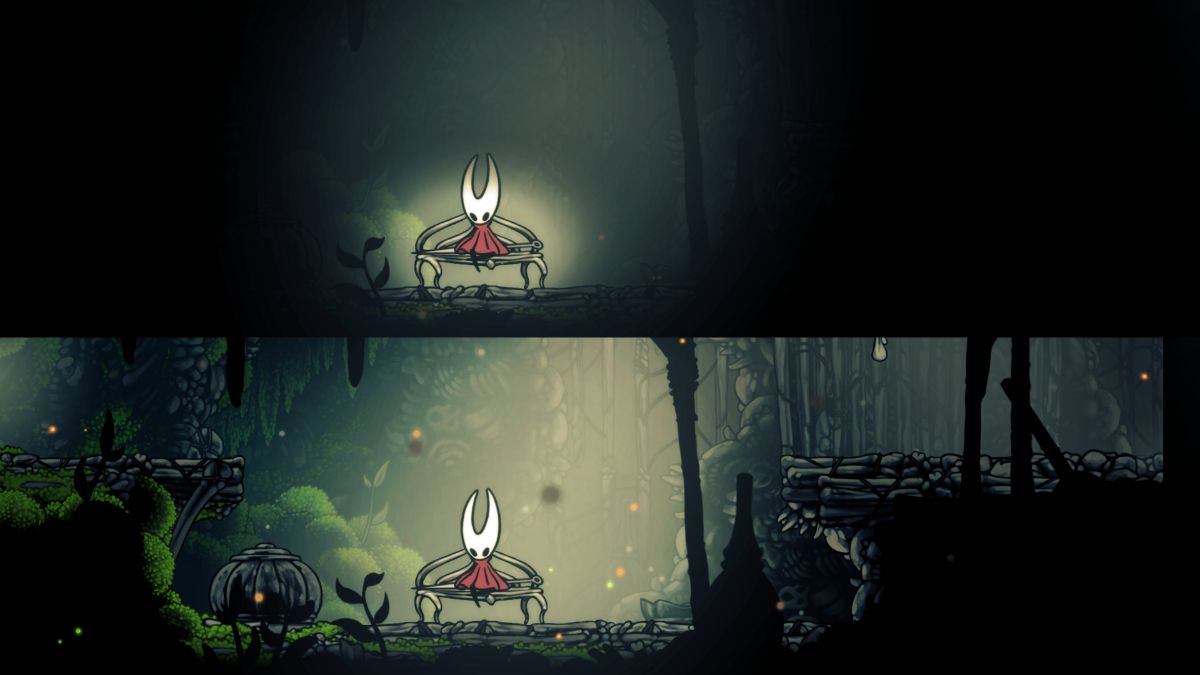
Hollow Knight: Silksong has a very deliberate vignette effect applied to its presentation to tastefully mask the edges of any given moment for a consistent look regardless of where you are in the world. It adds to the atmosphere and mystery, but there isn’t an in-game option to disable it.
If you aren’t a fan of this effect, then modders have already come up with tools to disable the effect entirely or adjust it to your liking. There are a few mods to choose from, but the one from p1xel8ted not only disables vignette in Hollow Knight: Silksong but gives you plenty of control over other aspects as well.
Disable the Vignette Effect in Hollow Knight Silksong
The patch from p1xel8ted is primarily used to add ultrawide support to Hollow Knight: Silksong, but the mod author has added plenty of additional useful customization features as well. Here is how you can install it:
- Make sure Hollow Knight Silksong isn’t running.
- Head over to the following GitHub link.
- Here, click on 01.HollowKnightSilkSong_v0.1.1_WindowsProton.7z under Assets to download the patch zip file. (or whatever the latest version for the patch is).
- Extract the zip file in the game’s installation folder.
- Launch Hollow Knight: Silksong and press F1 to bring up the menu after loading up a save.
- Select the Advanced settings tab, then select the listed patch.
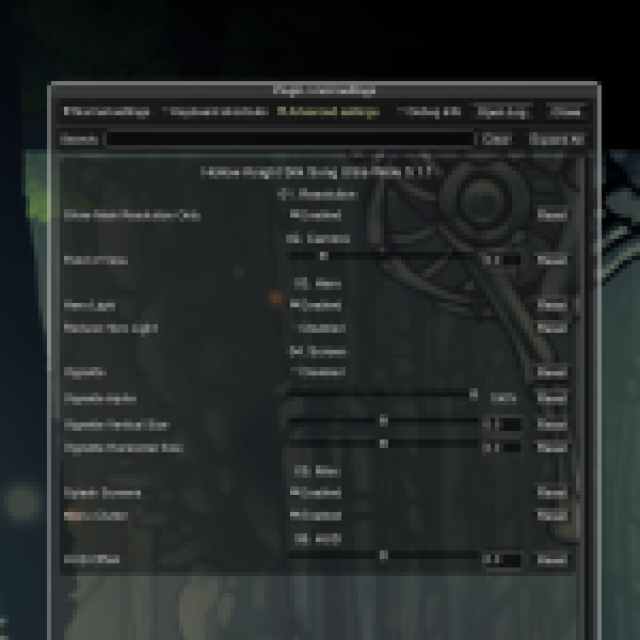

Here, you can adjust several things in real-time:
- Field of view (FOV)
- Hero Light (The light around Hornet)
- Vignette, Vignette Alpha, Vignette Vertical Size, Vignette Horizontal Size
- Menu Clutter
- HUD Offset
There is granular control provided for some of these settings, allowing you to adjust them to your liking. A “Reset” button is also available next to each setting, enabling you to revert it to the original setting. Once you’re happy with how the game looks, hit F1 again to hide the menu.
Here are a few comparisons:
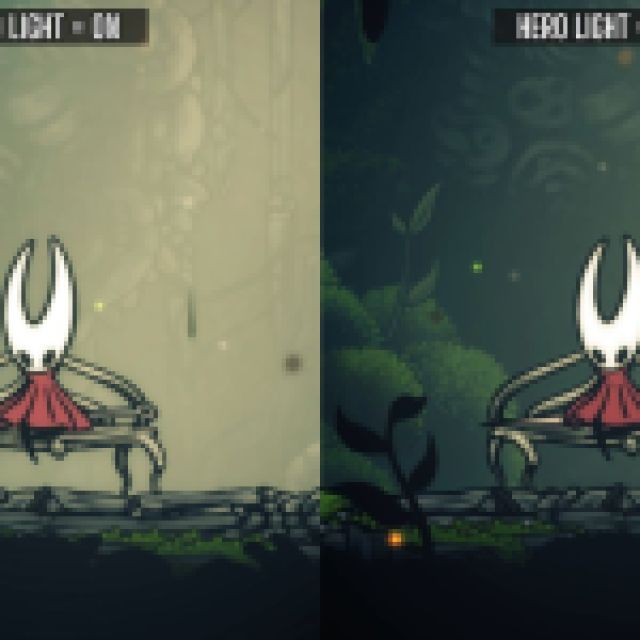


Now, obviously, you are changing the look of the game dramatically, especially when it comes to the vignette. So if you want the most authentic experience, I wouldn’t mess with these, at least not on the first playthrough.
All credits for the fix go to p1xel8ted, and you can consider supporting them at ko-fi.
Overall, this is an excellent and comprehensive patch that gives you plenty of granular control over several aspects of Hollow Knight: Silksong’s presentation while adding proper ultrawide support in the process.
For more on Silksong, check out these awesome Rosary Bead farming spots, or these 8 mods that make Silksong easier if you’re having any trouble with the game.
If you’d like to see more helpful guides, news, or features from Prima Games, please consider adding us to your preferred sources (available to users in the US or India).


