
How To Fix the Hollow Knight Silksong Controller Issues on PC
Shawwww!


Hollow Knight: Silksong brought several storefronts to their knees at release and is already close to 500K concurrent players on Steam. Just like the first game, PC is the way to go if you have the option, thanks to its support for multiple controllers, high refresh rate, and ultrawide support.
That said, despite the native support for several controller types, if you can’t get your controller to work properly in Hollow Knight: Silksong, here is how you can fix it.
Fix the Hollow Knight Silksong Controller Issues
Hollow Knight: Silksong has native profiles for Xbox and PlayStation controllers set up by the developers, but you need to disable Steam Input to access those, along with the correct button prompts.
- Make sure Hollow Knight: Silksong isn’t running.
- Open Steam and navigate to your library.
- Here, right-click on Hollow Knight: Silksong and select Properties.
- In the Controller tab, select the Disable Steam Input option under Override for Hollow Knight: Silksong.
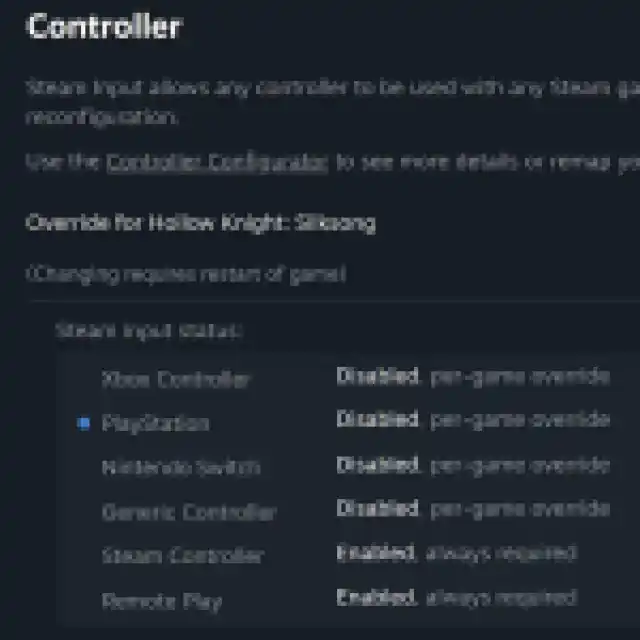

After you’re done, launch the game with the desired controller plugged in, and you will see the correct in-game prompts. I have tested the Xbox Series controller and the DualShock 4, and both display correct in-game prompts and work as you’d expect. Similarly, I can confirm that the DualSense works as well.
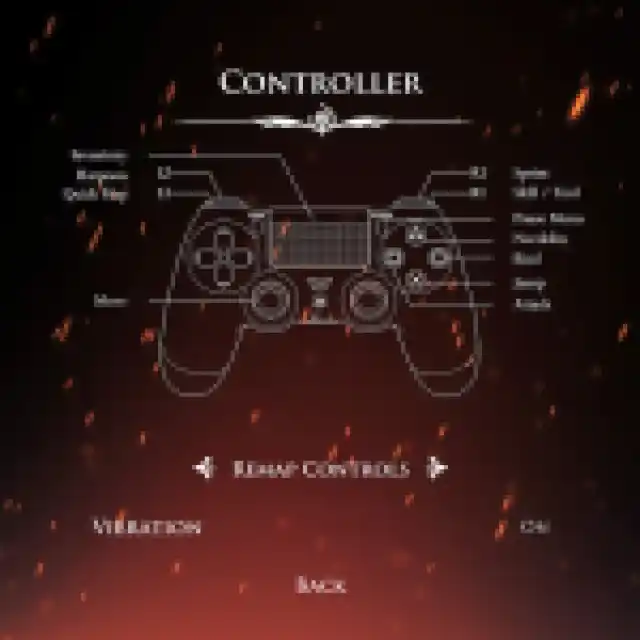


Known Controller Issue for PlayStation Controllers – Vibration
With Steam Input disabled, there is no vibration feedback in the PlayStation controllers, even though vibration works correctly with the Xbox controllers. So, if you really need that vibration feedback, then you need to enable Steam Input again; however, this means you will see Xbox prompts instead of PlayStation prompts. I hope that this is addressed by the developers in a patch.
Check Detected Controllers
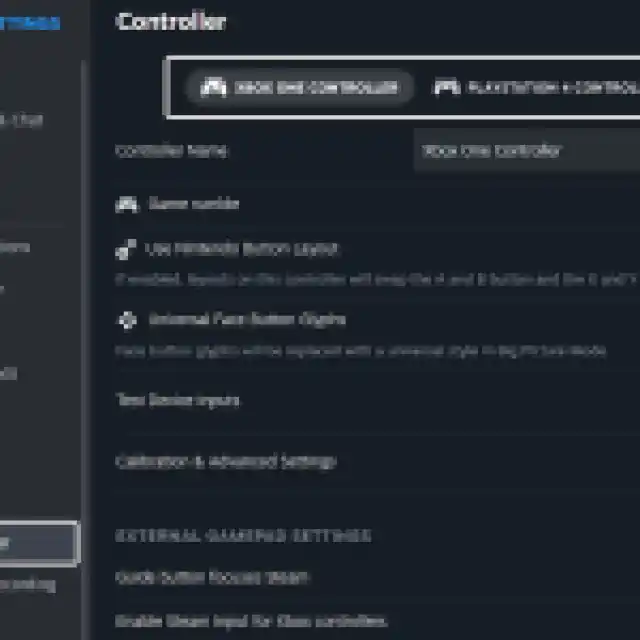
If your controller isn’t working even after disabling Steam Input, I recommend making sure that your connected controller is being detected by Steam. To check detected controllers in the Steam client, simply select Steam > Settings > Controller:

Remove Other Controllers
Finally, as an added measure, make sure that you don’t have other generic controllers connected. Even though I could get both Xbox and PlayStation controllers working at the same time, something like a HOTAS, fight stick, steering wheel, or anything similar might cause a potential conflict.
Overall, the controller support for Hollow Knight: Silksong is solid on PC, and I hope that the vibration issue for PlayStation controllers is sorted out soon.


