
How To Fix the Date Everything Ultrawide Issue on PC
Ultrawide Dating!


Date Everything, the game that lets you literally date everything, is one of the funniest releases of the year, with a stacked cast of memorable voice actors. It’s also fairly light when it comes to requirements and can basically run on anything. Sadly, it doesn’t have ultrawide support by default.
As usual, though, Rose from the widescreen community has taken up the task to add ultrawide support to Date Everything with a handy patch.
Fixing the Date Everything Ultrawide Issue on PC
The path from Rose adds ultrawide support to Date Everything by unlocking all resolutions. It’s pretty simple to install, and here is how you can do that:
- Head over to the following GitHub link
- Download the patch file by clicking the Date.Everything.ultrawide.v0.1.zip under Assets
- Run the patcher and target the file as advised
That’s all you need to do, and the next time you launch Date Everything, it will render properly in your desired ultrawide resolution. Here are a few screenshots of the patch in action shared by Rose:
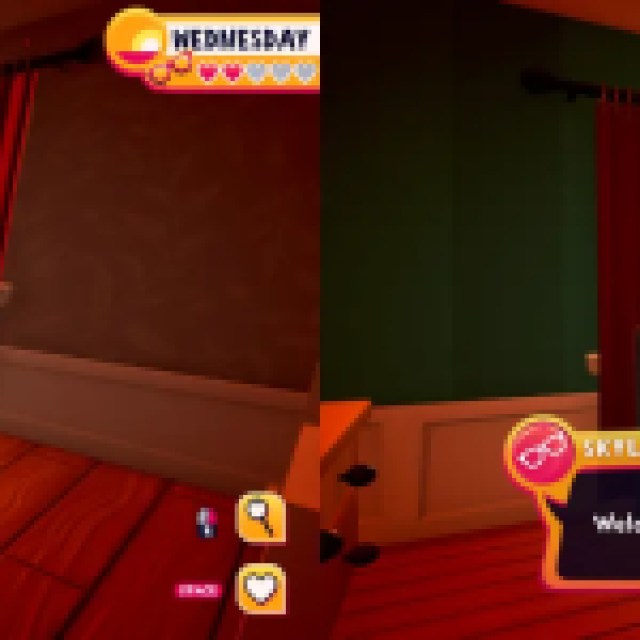

All credits go to Rose for creating and testing the patch at 2560×1080 and 5120×1440. You can learn about their work on their Patreon or BuyMeACoffee pages.
The patch works for the most part part but it isn’t perfect and there are a few small issues with it.
- Main menu and loading screens are stretched.
- Some UI elements overlap, making some text hard to read.
- A yellow triangle covers the right side of the screen in dialogue (particularly prominent in 32:9).
These issues become more pronounced the wider your resolution is. Give the patch a try either way because it’s your best bet at the moment, and the screenshots shared above show it working in a pretty decent state.
If you want to remove the patch, simply verify the game files from Steam.
- Open Steam and navigate to your library
- Here, right-click on Date Everything and select Properties
- In the Installed Files tab, click on Verify integrity of game files
Overall, this improves the experience on an ultrawide monitor substantially, and I hope that the developers consider adding proper support in a future patch. It doesn’t happen as often post-release, and I wouldn’t hold my breath.


