
How To Fix the Stellar Blade Screenshots Issue on PC
Stellar selfies!


The PC release of Stellar Blade has already beaten every single PlayStation published title’s CCU on the platform by a wide margin. It’s a massive hit on Steam and is an excellent port that runs great and actually feels like an upgrade over the PS5 release.
Despite the high quality of this port, there are minor issues here and there. If you can’t use the photo mode to take screenshots in Stellar Blade, especially during a certain mission, here is how you can fix that.
Fixing the Screenshots Save Failed Error in Stellar Blade
If you aren’t able to take selfies in a specific mission or save photo mode shots in Stellar Blade, it’s because the game doesn’t have the required permissions to create a dedicated folder for these shots. You’ll see an error pop up at the top left saying “Screenshots Save Failed“.


This can happen if you installed the game in the Windows directory (C), but thankfully, there is a pretty simple solution for this.
- Open Steam and navigate to your library.
- Right-click on Stellar Blade, select Manage, followed by Browse local files.
- This will take you to where Stellar Blade is installed on your PC. By default, it should be this if you installed it on the C drive.
C:\Program Files (x86)\Steam\steamapps\common\StellarBlade\
- Here (in the StellarBlade folder), create a new folder and rename it to “Screenshots“
That’s all you need to do, and you can now progress through the mission and take screenshots normally. Ideally, the game should have created this folder automatically, but like I said, it’s possible that the executable simply doesn’t have permissions to do that.
Alternate Workaround
The developers have also confirmed that simply disabling HDR also fixes this problem. Though I don’t think this is ideal if you want to use HDR.
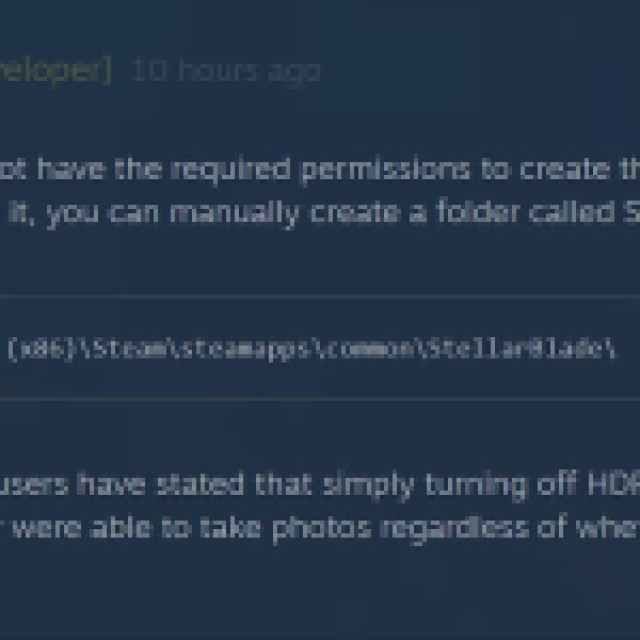

They also confirmed that they are looking into this matter, so that players don’t have to resort to creating a new folder for this basic feature.
Overall, despite these minor issues, Stellar Blade’s port is one of the best Unreal Engine releases we’ve seen in a while. It helps that it isn’t using Unreal Engine 5, but performance has been consistent on both PC and PS5.


