
How To Use the Photo Mode in Assassin’s Creed Shadows
50% of your playtime will be spent here.


Assassin’s Creed Shadows is easily the best-looking entry in the series and another fantastic showcase of Ubisoft’s proprietary Anvil engine. Like every other Ubisoft title, Assassin’s Creed Shadows includes a detailed photo mode, allowing you to capture its lush environments, intense battles, and plethora of adorable animals.
Here is how you can access the photo mode in Assassin’s Creed Shadows, all its features, and the location of locally stored screenshots.
Using the Photo Mode in Assassin’s Creed Shadows
To activate photo mode in Assassin’s Creed Shadows, you need to press F3 on the keyboard or click both thumbsticks (L3 + R3, LS + RS) on the controller.
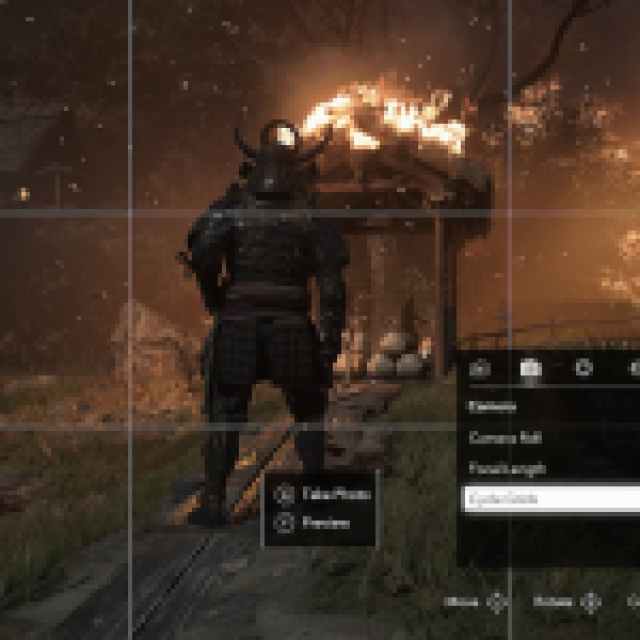
While photo mode is active, you can move the camera around, zoom in, and adjust several settings. These include the following:
| Camera | Lens | Filters | Decorations |
|---|---|---|---|
| Camera Roll | Depth of Field | FX Filters | Stickers |
| Focal Length | Aperture | Filters | Frames |
| Cycle Grids | Focal Distance | Brightness | |
| Auto-focus | Exposure | ||
| Grain | Temperature | ||
| Grain Intensity | Tint | ||
| Saturation | |||
| Contrast |
Once you’re happy with the screenshot, press A or X on the controller, or spacebar on the keyboard to take the screenshot.
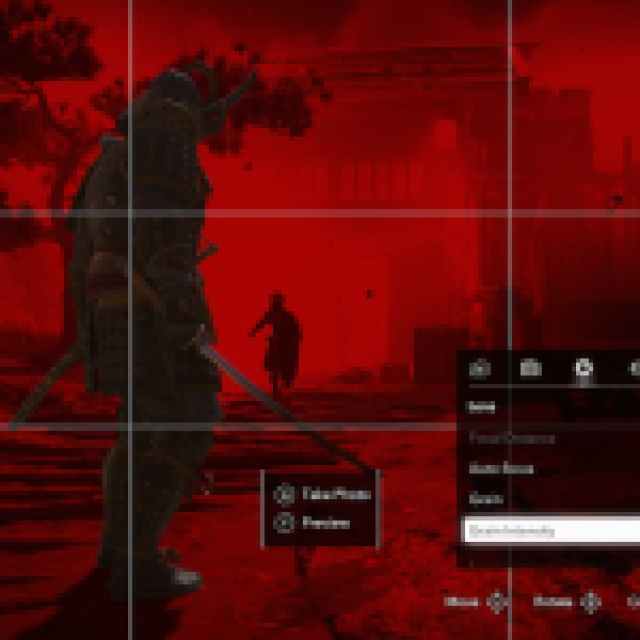
You can either take the screenshot with the photo mode tool, Ubisoft Connect’s screenshot tool, or third-party software. Pressing Y on the controller will hide the UI.
Assassin’s Creed Shadows Photo Mode Screenshots Location
The screenshots taken with the photo mode of Assassin’s Creed Shadows are saved in the following location:
C:\Users\[Windows Username]\Documents\Assassin's Creed Shadows\photos
The photos folder contains each screenshot and the quality is decent despite the lower file size.
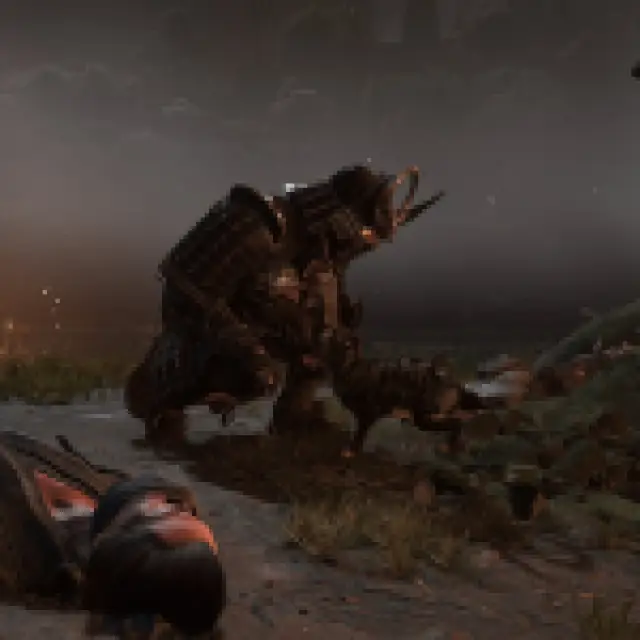
Normally I’m used to seeing 10-15 MB screenshots taken with dedicated photo modes when playing at 4K, but here these files are around 2 MB.
Overall, the photo mode is decent, but not as detailed as I’d like. You can’t change the time of day, weather conditions, character poses, or expressions and there is no ability to place light sources in a scene either. It’s a bit basic, even if the image and color options are nice. I also appreciate how far back you can pull the camera, but these additions could’ve made it even better.
It’s hard not to compare this to Ghost of Tsushima’s photo mode as it’s the same setting, which has way more features for the perfect shot. Thankfully, unlike Star Wars Outlaws, there are dedicated buttons for bringing up the photo at least.


