
How to Import Characters in Paralives
These mods and creations could be the lifeblood of Paralives.


Want to use creations by other players in Paralives? There’s a way you can import these characters to your playthrough, whether it is an existing save file or a new playthrough.
Here’s a quick guide on importing characters and even adding houses and mods in Paralives.
How to Add Imported Characters in Paralives
To import characters online, go to the Paralives page on Steam. Select the Workshop and browse through thousands of mods, houses, and households. Select any households you want and press the “+ Subscribe” button, which will automatically download the household.
These households contain creations from other creative players, and they can either be a single character or multiple, depending on the household selected.
Once subscribed, you’ll have to reopen the game if you are currently playing while subscribing to these workshop creations.

Now, importing these characters will have a different method if you already have an existing game compared to starting from scratch.
Importing a Character in an Existing Save File
If you have a current save file, open it. Open the main menu and choose “create a new household.” Once you do that, you’ll enter the character or household creation page. Look through the icons at the top and select the “Household Library,” which looks like a house with a plus sign.
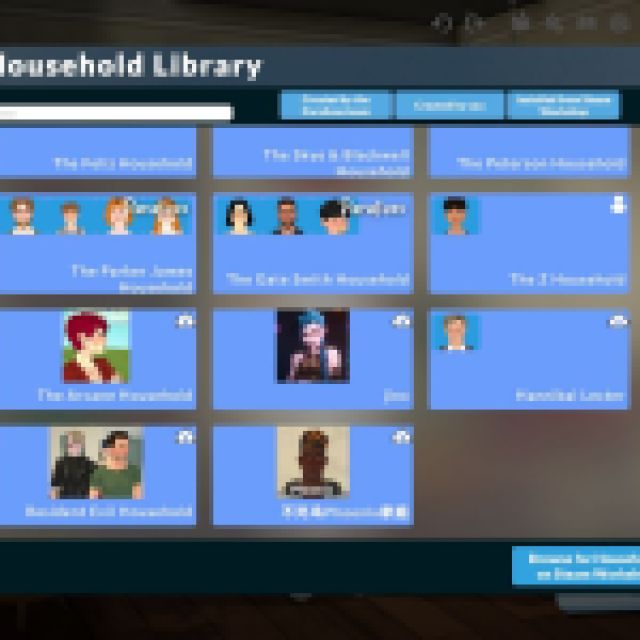
In this page, you’ll see all the available households in your playthrough, including all the ones from your workshop subscriptions. Select your desired household and press “play with household.” This will let you play the existing save file with the new imported character or household. Select any house for them to move into.
If you just want them to be in your town, you can go back to your character or household and interact with your character. It’ll prompt you to switch and play with the selected household, which will revert to your original character.
Importing Characters in a New Playthrough
Now, if you are starting a new playthrough, you can follow all the steps above, but you’ll just have to start creating your character first if you don’t want to play imported ones. After creating your character, go through the tutorial (you can skip this if you went through it before) and officially move your character to another household.
Next, open the main menu and create a new household. Follow the steps mentioned above, and you should be good to go.
For mods and houses, you can go to the game’s main menu and select “Mods.” This will take you to the mods, lots, households, and control panel menu. Any subscribed mods and houses from the Steam Workshop should show up here.


