
How To Fix the Sword of the Sea Resolution Issue on PC
Essential!


With Sword of the Sea, Giant Squid has crafted another stunning adventure, filled with bright landscapes, breathtaking vistas, and a variety of animals and fish to grace your screen. It’s the kind of game best experienced on a large display, where the presentation truly shines.
Unfortunately, the launch version of Sword of the Sea doesn’t allow you to select a resolution beyond 1440p, and a few options are missing as well. If you’re on a 4K display like me, then you won’t be able to render the game properly on your screen, leading to an inferior experience.
This was an issue in their last game, The Pathless, as well, and here is how you can fix the resolution issues in Sword of the Sea.
Fixing the Sword of the Sea Resolution Issues
To fix the Sword of the Sea resolution issue where not all options appear, override its High DPI scaling behavior and set it to Application.
To fix this, follow the steps below.
- Make sure Sword of the Sea isn’t currently running.
- Open Steam and navigate to the library.
- Right-click on Sword of the Sea, followed by Manage, and Browse local files.
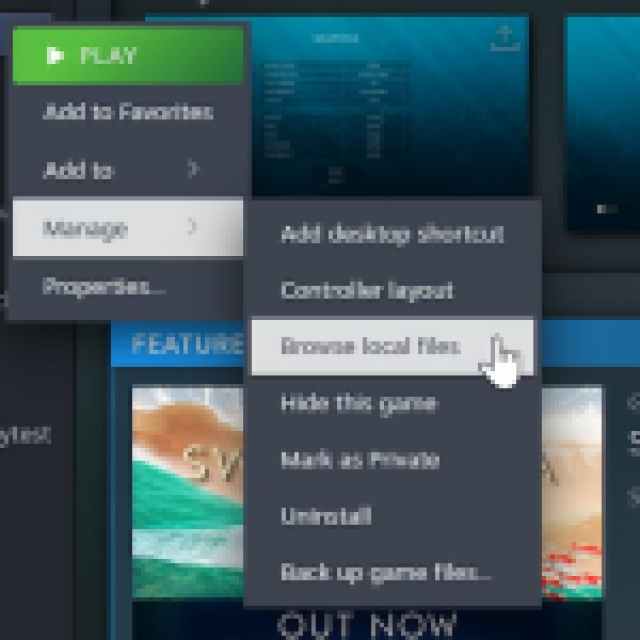
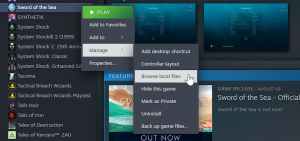
- Here, right-click on the SwordOfTheSea.exe executable and select Properties.
- Now, in the “Compatibility” tab, select “Change high DPI settings“ in the new window.
- Check “Override high DPI scaling behavior” under “High DPI scaling override”, and set it to “Application“.
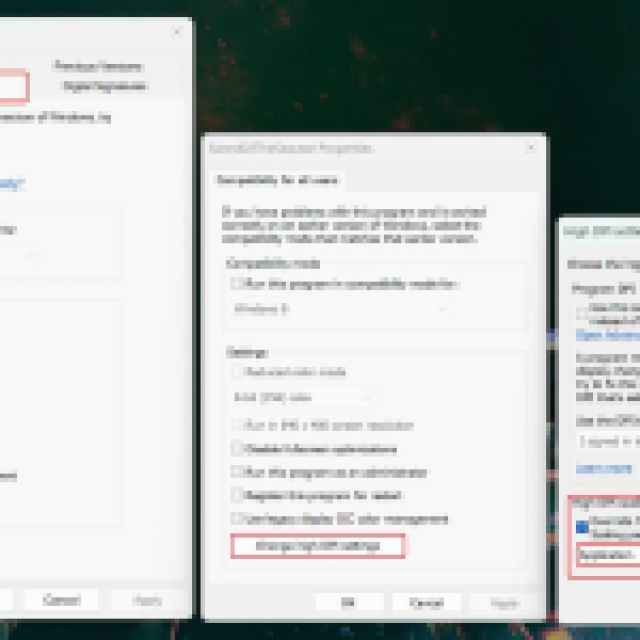

- Press Ok, and you’re good to go.
The next time you launch Sword of the Sea and you’ll see all the correct resolution options. In my case, I didn’t see 3840 x 2160 (4K) before, but it appeared and worked correctly after this DPI scaling change.
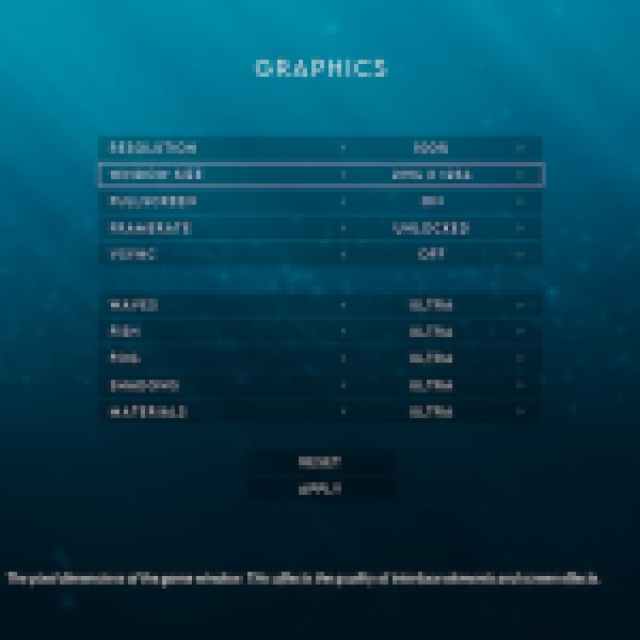

You can adjust the render scale as well by lowering the value of resolution from 100% to something like 80%; however, even with the lower values, the actual output resolution will match your desired one. The game does not have DLSS or FSR, which is an odd choice because it’s pretty easy to enable for Unreal Engine 5 titles.
I hope that this resolution issue is something the developers address in the first patch because not everyone is aware of how Windows DPI scaling works. Additionally, the game would greatly benefit from upscaling technologies, especially for players on higher resolution monitors. It’s a gorgeous game, but having a higher framerate to match that only adds to the overall experience.


