
How to Disable Film Grain and Chromatic Aberration in Beast of Reincarnation
Looks way better without it!


Beast of Reincarnation is out now on PC and consoles, and it’s a fairly standard Unreal Engine 5 title from a technical standpoint. While some graphics settings are available, you can’t fine-tune every setting, including individual post-processing effects.
If you want to disable the aggressive film grain and chromatic aberration effects in Beast of Reincarnation, here’s how to do it.
Disable Film Grain and Chromatic Aberration in Beast of Reincarnation
Like many other Unreal Engine titles, Beast of Reincarnation combines several post-processing effects into a single setting, making it difficult to adjust them individually based on your preferences. Thankfully, it’s easy to disable both film grain and chromatic aberration by setting Post Processing to Low in the graphics settings.


You don’t need to edit any configuration files to get a sharper image with both effects disabled. Just setting this low significantly improves visual clarity and removes the soft, blurry effects from the presentation.
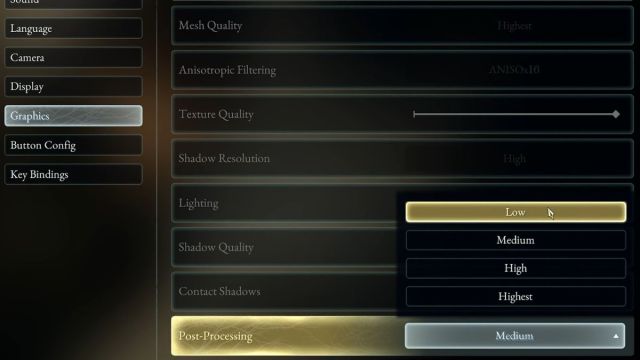
However, if you want to disable only one of them, you can create a custom configuration file instead.
Create Custom Configuration File
- Head over to the following location:
C:\Users\[YOUR USERNAME]\AppData\Local\BeastOfReincarnation\Saved\
- Create a new file named Engine.ini (make sure the extension is .ini, not .txt).
Disable Film Grain
- To disable only film grain, open the newly created Engine.ini file and add the following commands:
[SystemSettings]
r.FilmGrain=0
r.Tonemapper.GrainQuantization=0
- Make sure to save the file (Ctrl+S) and exit.
Disable Chromatic Aberration
- To disable only chromatic aberration, open the newly created Engine.ini file and add the following command:
[SystemSettings]
r.SceneColorFringeQuality=0
- Make sure to save the file (Ctrl+S) and exit.
Again, if you want to disable both effects, simply set Post Processing to Low and you’ll achieve the same result. You may also see a slight performance improvement, as these effects can be somewhat taxing.
What about Motion Blur and Depth of Field?
Thankfully, Motion Blur has its own intensity slider, and Depth of Field can be toggled independently.
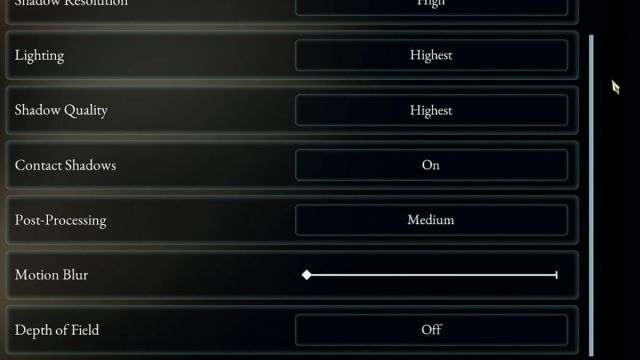
Film grain and chromatic aberration are the only effects bundled under the Post Processing setting.
As always, I hope the developers consider adding dedicated toggles for these effects in a future update. The game has excellent art direction that doesn’t get to shine because of these aggressive post-processing effects.
Even if you use higher-quality upscaling or play at native resolution, the image still suffers from effects many players aren’t familiar with. A simple toggle that lets you see the difference in real time can make a big impact.


