Grounded 2 has launched into early access on PC and Xbox Series S|X, and has already surpassed the original’s concurrent player count on Steam. So far, despite being far from complete, it’s already a far more improved experience than the original, with plenty of new features.
Recommended Videos
To make sure you’re acquainted with all the mechanics, here are the complete controls for Grounded 2, whether you’re playing with keyboard and mouse or a controller.
Grounded 2 Complete Controls for Keyboard and Mouse
Here are the default controls for Grounded 2 if you’re playing with a keyboard and mouse. Every time I’ve used ‘-‘, it means the action is unassigned.
In-Game Mappings
Action
Input
Move Forward
W
Move Backward
S
Strafe Left
A
Strafe Right
D
Swim Up
Spacebar
Swim Down
Left Ctrl
Turn Left
–
Turn Right
–
Look Up
–
Look Down
–
Autorun
J
Jump
Spacebar
Omni-Tool
E
Interact (Use)
E
Interact (Cancel)
X
Relocate Building
F
Pick Building
Middle Mouse Button
Customize
G
Attack
Left Mouse Button
Photo Mode
P
Block
Right Mouse Button
Huck
R
Unload
R
Dodge
Left Ctrl
Sprint
Left Shift
Crouch
Left Alt
Glide
Left Shift
Equip Previous
Q
Camera Mode Toggle
U
Push to Talk
Left Alt
Toggle Trail / Backpack / Build Markers
Y
Use PEEP.R
X
Exit PEEP.R
Escape
Place Waypoint
Left Mouse Button
Remove Waypoint
R
PEEP Creature
E
Skip
E
Hot Deposit Nearby Storage
N
Next HotPouch Page
Mouse Scroll
Previous HotPouch Page
Mouse Scroll
Hotpouch
Action
Input
HotPouch Slot 1-8
1 – 8
Construction Mappings
Action
Input
Place Building
Left Mouse Button
Rotate Building Clockwise
E
Rotate Building Counterclockwise
Q
Snap to Grid
Left Ctrl
Cancel
Right Mouse Button
Flip Building
G
Handy Gnat Mappings
Action
Input
Handy Gnat Repair
Left Mouse Button
Handy Gnat Move Up
–
Handy Gnat Move Down
–
Handy Gnat Light Toggle
–
Exit Handy Gnat
–
Handy Gnat Unload
–
Toggle Grid Snapping
Z
Ghost Toggle
C
Design Mode Mappings
Action
Input
Interact (Output)
Left Mouse Button
Interact (Input)
Right Mouse Button
UI Mappings
Action
Input
Toggle SCA.B 2K Menu
Tab
Toggle Inventory Menu
I
Toggle Crafting Menu
C
Toggle Map Menu
M
Toggle Construction Radial
B
Toggle HotPounch Radial
V
Toggle Ammo Radial
R
Toggle Chat / Emote Radial
H
Toggle Summoning Radial
T
Toggle Handcraft Radial
Z
Next Page
E
Previous Page
Q
Next Tab
D
Previous Tab
A
Next Radial Page
E
Previous Radial Page
Q
Equip Item
F
Select
Spacebar
Cancel
Escape
Action 1
W
Action 2
S
Action 3
E
Item Actions
Y
Consume Item
F
Assign HotPouch Slot
Z
Inspect Item
O
Repair Item
R
Chat
Enter
Transfer Item
F
Take All
W
Narration More Info
Num /
Toggle Radial
F
Photo Mode Mappings
Action
Input
Photo Settings
Tab
Next Tab
]
Previous Tab
[
Switch to Freecam / Orbitcam
V
Take Photo
T
Toggle HUD
Y
Photo Archive
B
Photo Camera Move Up
E
Photo Camera Move Down
Q
Grounded 2 Complete Controls for Controller
Here are the default controls for Grounded 2, if you’re playing with a controller. Every time I’ve used ‘-‘, it means the action is unassigned.
In-Game Mappings
Action
Input
Move
Left Stick
Swim Up
–
Swim Down
–
Look
Right Stick
Autorun
–
Jump
A
Omni-Tool
X
Interact (Use)
X
Interact (Cancel)
B
Relocate Building
Y
Pick Building
Right Stick
Customize
LB
Attack
RT
Block
LT
Huck
RB
Unload
RB
Dodge
B
Sprint
LS
Crouch
RS
Glide
A
Equip Previous
–
Camera Mode Toggle
–
Push to Talk
–
Toggle Trail / Backpack / Build Markers
–
Use PEEP.R
Y
Place Waypoint
X
Remove Waypoint
LS
PEEP Creature
RB
Skip
B
Hot Deposit Nearby Storage
–
Next HotPouch Page
–
Previous HotPouch Page
–
Construction Mappings
Action
Input
Place Building
X
Rotate Building Clockwise
RT
Rotate Building Counterclockwise
LT
Snap to Grid
LB
Cancel
B
Flip Building
LB
Handy Gnat Mappings
Action
Input
Handy Gnat Repair
RT
Handy Gnat Move Up
–
Handy Gnat Move Down
–
Handy Gnat Light Toggle
–
Exit Handy Gnat
–
Handy Gnat Unload
–
Toggle Grid Snapping
LB
Ghost Toggle
RS
Design Mode Mappings
Action
Input
Interact (Output)
RT
Interact (Input)
–
UI Mappings
Action
Input
Toggle SCA.B 2K Menu
View Button
Toggle Inventory Menu
–
Toggle Crafting Menu
–
Toggle Map Menu
–
Toggle Construction Radial
D-Pad Up
Toggle HotPounch Radial
LB
Toggle Ammo Radial
RB
Toggle Chat / Emote Radial
D-Pad Left
Toggle Summoning Radial
D-Pad Right
Toggle Handcraft Radial
D-Pad Down
Next Page
RT
Previous Page
LT
Next Tab
LB
Previous Tab
LB
Next Radial Page
RT
Previous Radial Page
LT
Equip Item
X
Select
A
Cancel
B
Action 1
X
Action 2
Y
Action 3
RB
Item Actions
LS
Consume Item
X
Assign HotPouch Slot
LB
Inspect Item
X
Repair Item
RB
Chat
–
Transfer Item
X
Take All
RT
Narration More Info
RS
Toggle Radial
RB
Photo Mode Mappings
Action
Input
Photo Settings
Y
Next Tab
RB
Previous Tab
LB
Switch to Freecam / Orbitcam
LB
Take Photo
RB
Toggle HUD
X
Photo Archive
D-Pad Right
Photo Camera Move Up
RT
Photo Camera Move Down
LT
Can you Remap Controls in Grounded 2?
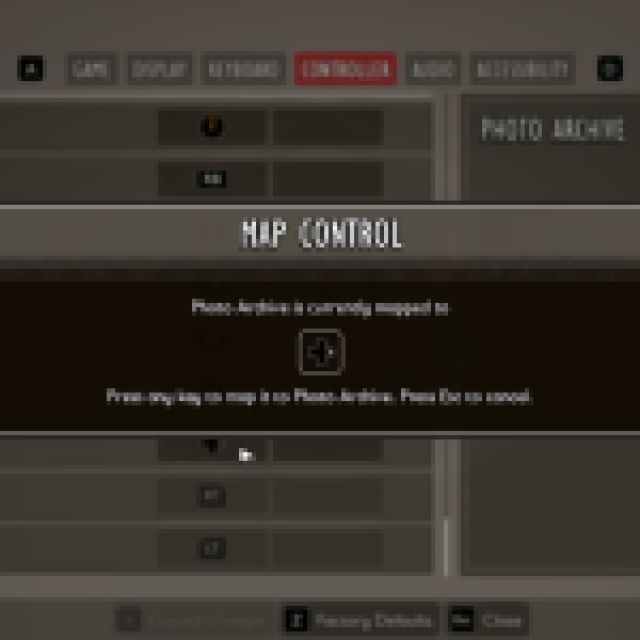
Yes, you can remap controls in Grounded 2 for both keyboard and mouse as well as controllers. However, certain keys are locked to some default bindings and will be greyed out, but everything else can be easily rebind to your liking.
Screenshot by Prima Games
Grounded 2 Supported Controllers on PC
Based on my testing, Grounded 2 has native support for Xbox controllers, but PlayStation controllers like the DualShock 4 only work with Steam Input enabled.
Overall, Grounded 2 has plenty of customization for controls, but I wish it had native support for more than one controller type.
Ali Hashmi is a games journalist, reviewer, and guides writer with over eight years of experience covering the gaming industry across news, reviews, features, walkthroughs, and technical guides. He currently writes for Prima Games and GTA 6 Bible, and has previously contributed to Dot Esports, WhatIfGaming, GameTyrant, and The OuterHaven. With a background in Computer Science and years spent covering PC gaming, Ali has developed a strong focus on performance analysis, optimization, troubleshooting, and in-depth game coverage alongside traditional reviews and features.
A longtime fan of action games, Ali spends most of his time obsessing over stylish combat systems, difficult boss fights, immersive sims, and retro shooters that feel like they were pulled straight out of the late ‘90s. When he isn’t replaying Dark Souls for the hundredth time or climbing Ascension levels in Slay the Spire, he’s usually hunting for the next indie game to recommend to everyone around him. His coverage regularly includes AAA releases, indie games, Soulslikes, survival titles, live service games, and technical PC focused guides.