
How To Fix the Crashing Issues in PEAK
Game is PEAK.


PEAK, an online co-op game about climbing, is one of the biggest smaller releases of the year, selling nearly one million copies in just four days. It’s also pretty light on the hardware, but it’s not perfect when it comes to stability, leading to crashes.
If you’re constantly running into a crash during or at launch in PEAK, here are a few things you can do to fix that.
AMD Users: Play in DX12 Mode
If you have an AMD GPU, the developers recommend playing in the DirectX 12 mode instead of Vulkan. This is supposedly more stable and should resolve any crashes. Switching to DirectX 12 is pretty simple. Instead of using the shortcut to launch PEAK, run the game from Steam, and you’ll be given the choice of renderer.
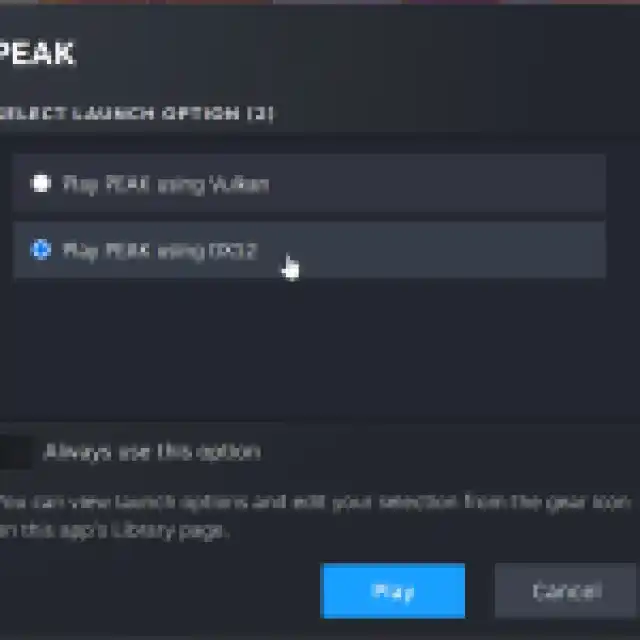

If this improves your experience, you can also check “Always use this option” in the window.
Don’t Use Alt+Tab, for Now
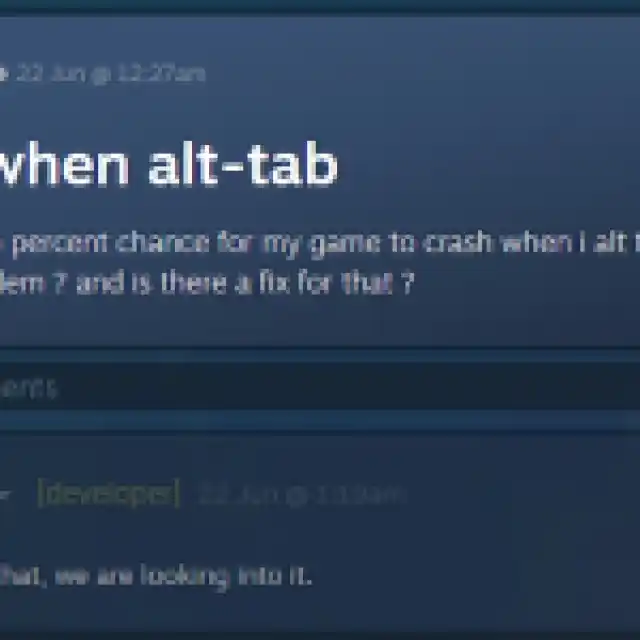
If you use Alt-Tab during the game, it can result in a crash. For now, avoid that while playing PEAK. This is a known issue, and the developers have confirmed that they are looking into it.
Apply an FPS Cap, or Use Vsync
The developers recommend applying an FPS cap while playing PEAK. I don’t recommend using the in-game tool to do this, but instead applying a cap on the driver level. This means you can simply apply a framerate cap that either corresponds to your monitor’s refresh rate or something you can consistently hit.
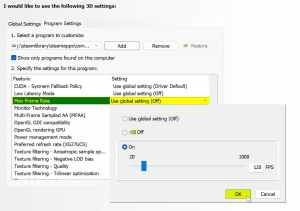
- Open the NVIDIA Control Panel, and select Manage 3D Settings under 3D Settings
- Select Program Settings
- Under “Select a program to customize,” select PEAK or click Add to select it from recent applications
- Next, set the value of Max Frame Rate to your desired value.
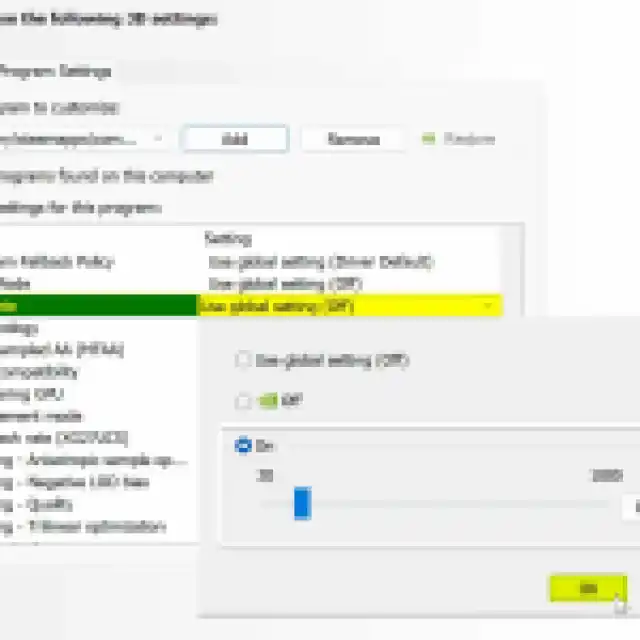
Alternatively, you can use the in-game vsync feature to do the same.
- Go into Settings, followed by the Graphics tab.
- Under Max Framerate, you’ll see Vsync. Set that to “Enabled.”
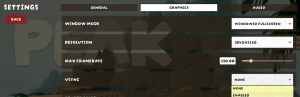
This is also helpful if your system is a bit too powerful and you’re getting better performance than your monitor’s max refresh rate.
Verify Game Files
PEAK has received plenty of updates since its release, which is why I recommend checking if all your game files are in order.
- Open Steam and navigate to your library
- Here, right-click on PEAK and select Properties
- In the Installed Files tab, click on Verify integrity of game files

Update GPU Drivers
Make sure you’re using the latest GPU drivers, especially if you haven’t updated those in a while. You can get the latest drivers for your GPU from the links below.
Generic Troubleshooting
Apart from that, you can try the following generic troubleshooting suggestions.
- Update DirectX and Visual C++ Redistributables
- Switch to your dedicated GPU if you’re playing on a laptop
- Don’t interrupt the shader compilation process – It doesn’t take too long.
- Add the game’s folder to your antivirus list of exceptions or exclusions
- Make sure that the date and time in your Windows are correct
- Update Windows to the latest version (1909 or higher)
- Make sure you meet the minimum system requirements.
If nothing works, you can send your crash logs directly to the developers at [email protected]
You can find the logs here:
C:\Users\USERNAME\AppData\LocalLow\LandCrab\PEAK
Though this shouldn’t be necessary after following my recommendations above for fixing the crashing issues in PEAK.


