
How to Get & Use Parachutes in WARDOGS
All the details on how to get parachutes and use them in WARDOGS, including a fix for a prominent bug plaguing the community.


WARDOGS has plenty of roles to fill to help your team push for victory, but you won’t be much use coming from an aerial position if you don’t have a parachute in case of an emergency.
Without a parachute, it will be a hard landing and a swift death in WARDOGS, which will cost valuable cash, but there have been some issues in the game with the controls.
For a basic understanding of parachutes and how to get them in WARDOGS, and the issues that may be occurring when attempting to use them, we’ve got all the details.
How to Get Parachutes in WARDOGS
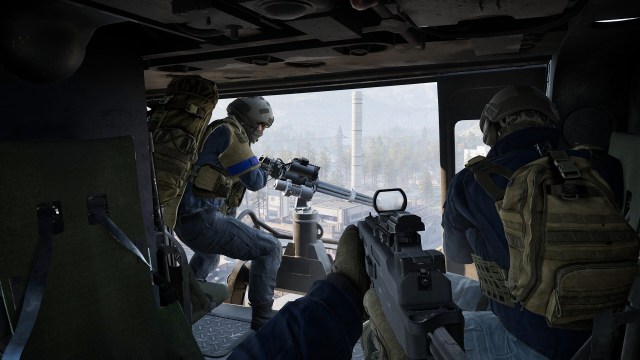
Like the majority of items and equipment in WARDOGS, a parachute must be purchased from a Vendor, and you won’t automatically have one in your inventory.
There are two parachutes available in WARDOGS, with the basic option being significantly cheaper but with the caveat that it cannot be manually controlled, leaving you a sitting duck for enemies to shoot out while you fall to the ground.
At Level 35, the Sport Parachute is unlocked, costing $500. With this, you can control your descent and movement to avoid enemy fire as you fall and identify the perfect landing spot.
How to Use Parachutes in WARDOGS
The standard control to deploy a parachute in WARDOGS is pressing Space, but there are some issues that may result in the control being unbound in your settings.
Space is the keybind commonly used by players to ascend a helicopter while piloting, and if you made such an adjustment, it may have left the Parachute deploy not having a designated button, and there’s a bug that doesn’t let you adjust this.
Fortunately, users have discovered a fix, though it will be more complicated. Here are the steps to follow:
- Close WARDOGS.
- Press Windows + R on your keyboard.
- Paste this into the Run Box: %LOCALAPPDATA%\Wardogs\Saved\Config\WindowsClient
- In the folder that opens, select the config file inside called ‘GameUserSettings.ini;
- Find the ‘TagName=Input.NamedActions.Player.DeployParachute’ section.
- Replace the text to this: ((TagName=”Input.NamedActions.Player.DeployParachute”), (PrimaryKey=(Key=SpaceBar,bIsCustom=True))
- Save the file and exit Notepad.
- Restart WARDOGS.


