
How to change audio and subtitles in Atomic Heart
Atomic Heart offers many audio and subtitles options.


Atomic Heart
shines a spotlight on the PC by delivering an optimized and highly immersive experience for players. The game features stunning voice acting and multiple options to change the audio language and even corresponding subtitles in various languages. In this article, we’ll explain how you can change audio and subtitles in Atomic Heart.
Change audio language and add subtitles in Atomic Heart
Related: Atomic Heart: How to change FOV
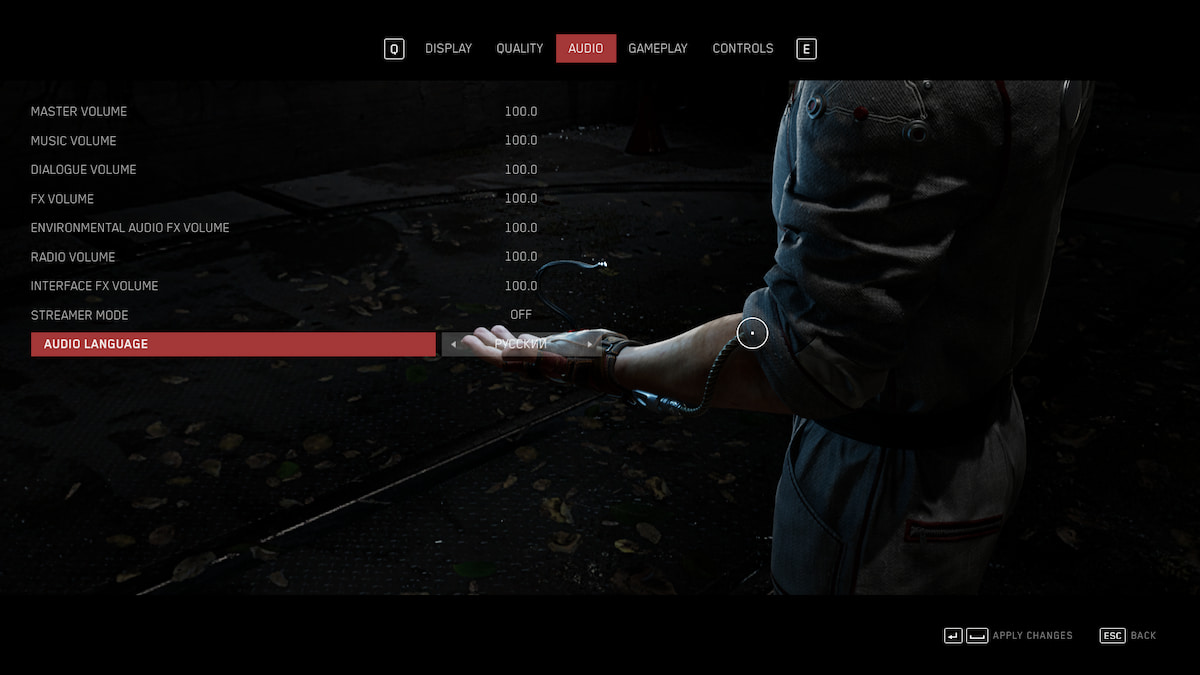
With the Audio and Subtitle settings, you can vastly improve the sound immersion of Atomic Heart. This is straightforward and easy to do. Follow these steps, and we’ll explain the process in detail:
- Once you boot up the game, head over to the options menu. If you’ve already loaded into the gameplay area, hit ‘Escape’ on your keyboard and select options. Note that you can only change your Audio Language in the Main Menu.
- In the options menu, navigate to the audio tab. You can do this by pressing ‘E’ twice or clicking ‘Audio.’
- In this section, you’ll be able to adjust and fiddle with multiple volume settings or turn on streamer mode (to avoid DMCA takedowns). You also can change the audio language of your game.
- If you want to add subtitles to Atomic Heart, navigate to the ‘Gameplay’ tab.
- You’ll see two subtitle options in the Gameplay tab: Art Subtitles and Subtitles. Art Subtitles refer to turning on subtitles for texts, posters, and minor things, while the Subtitles option refers to subtitles for the voice acting.
Since the game is set in Facility 3826, which was the primary scientific research hub of the Soviet Union in 1955, you can, for example, change the Audio Language to Russian and then turn Subtitles to English or any language you prefer to have a more immersive experience. Overall, Atomic Heart offers many audio and subtitles options and even more immersive gun sounds, which should be the standard in gaming.


