
How To Disable Vignette and Bloom in Kingdom Come Deliverance 2
It's subtle, but there.


Kingdom Come: Deliverance 2 uses a heavily modified version of CryEngine, similar to the first title. Unlike the first title though, Kingdom Come: Deliverance 2 runs phenomenally well on a wide range of hardware and looks the part too.
It has plenty of settings to adjust and upscalers to use, but there are minor omissions when it comes to post-processing effects bundled into one setting. Thankfully, you can disable a few of these effects like vignette and bloom in Kingdom Come: Deliverance 2, and here is how.
Disable Vignette in Kingdom Come Deliverance 2
Vignette is a cinematic effect that darkens the edges of a screen and is frequently used in AAA titles. Its implementation is subtle in Kingdom Come: Deliverance 2, but it’s still visible and can be distracting. You can’t disable it in-game individually, but we can create a custom configuration file to turn it off completely.
- Head over to where Kingdom Come: Deliverance 2 is installed on your PC
- Right-click the game in your Steam library
- Select Manage > Browse local files
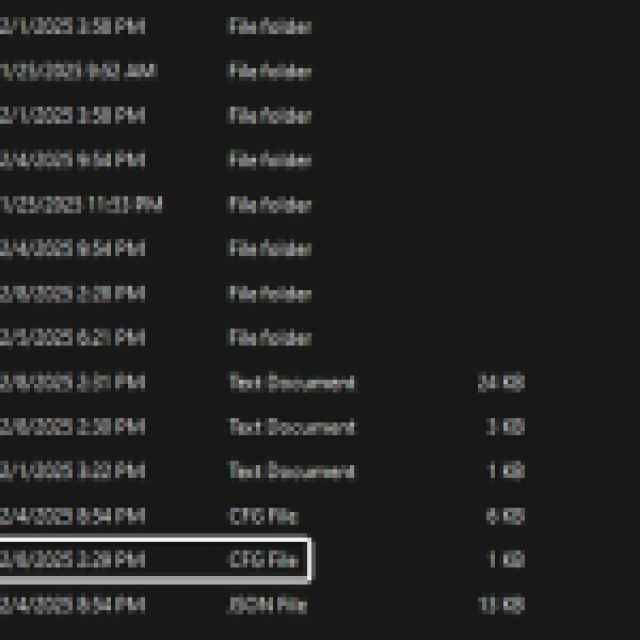
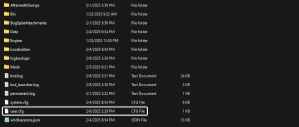
- Here, create a new text file and rename it to user.cfg (make sure that .cfg is its extension). It should look like this in the main installation folder.
- Now open the user.cfg file using a text editor like Notepad
- Here, enter the following line:
r_HDRVignetting=0
- Save the file (Ctrl + S) and exit out
That’s all you need to and the next time you launch Kingdom Come: Deliverance 2, the vignette effect will be disabled from regular gameplay and the in-game menus. Here is a comparison that shows how the game looks with the effect disabled.


Pay close attention to the edges of the screen. I’ve uploaded the same screenshots to imgsli for an uncompressed look. Again, it’s very subtle, but players sensitive to the effect should be able to pick it up.
Disable Bloom in Kingdom Come Deliverance 2
Similarly, players can disable the bloom effect in Kingdom Come Deliverance 2 by adding an additional command parameter to the custom user configuration file. Follow the same steps as above, and add the following line to disable bloom:
r_HDRBloom=0
I had a hard time spotting a major difference after turning this off. As I said, post-processing effects are used in a subtle manner in Kingdom Come Deliverance 2, which is why nothing feels too intrusive.
Thankfully, there is no chromatic aberration to strain our eyes and most of the presentation is fairly sharp. Additionally, you can technically lower the quality of these effects by turning down the value of “Post-Postprocess” quality to “Low”.
If you want to enable these effects again, simply remove the lines from the user.cfg file, and hit save. We hope that the developers consider adding individual toggles for these effects in the settings and do a better job of representing what each does with handy screenshots if possible.
You can further modify the game using in-game console commands that let you adjust the FOV, disable the HUD, and more.


